CF

Work

Process

About

Overview

Project Summary

When the organization prioritized a push toward GenAI, I took the lead on designing the integration within our Planning and Scheduling applications. Our users faced significant pain points synthesizing data from fragmented legacy sources, and AI offered a way to automate this composition.

Part of the challenge was scoping: I acted as the bridge between technical consultants and business stakeholders. I succeeded by advocating for a pragmatic MVP that balanced technical feasibility with immediate user value. We focused the AI on generating two critical artifacts: repair material lists (material request) and instructional procedures (documents review - work plan + controlled documents).

This began a fundamental shift in the user experience, transitioning Planners from manual creators to efficient reviewers and editors. This shift reduced planning time for AI-assisted tasks by 50%, delivering an efficiency gain equivalent to adding 3+ FTEs to the workforce.

While I managed the design implementation across both Planning and Scheduling apps, this case study deep-dives into the Planning application, demonstrating how AI-driven features turned a data-management struggle into a streamlined operational workflow.

Results

  • Added the equivalent of 3+ FTE due to GenAI automations

  • Increased overall planning capacity by by 10%

  • Decreased the time spent planning simple work orders by 60% for AI-assisted Work Orders

My Role

Lead UX Designer

Other Team Members

  • Associate UX Designer

  • Product Owner

  • AI Engineer

  • Full Stack Development Team

Who We Helped

Directly:

  • Nuclear Planners

  • Planning Management

Indirectly:

  • Work Supervisors

  • Work Schedulers

Key Vocab

Final Designs

Material Request

Documents Review

Deep Dive: Process & Insights

In this section, we will walk through all phases of the design process an go into detail about the process and methods we used to arrive at the solution that was developed into a live product.

Exploring the Problem Space

Before you create solutions to a business problem (or really any type of problem) it is important that you fully understand the problem space - that is - that you understand not only the problem itself but also the context under which it arises. For example, what greater process is this problem a part of? Who is the main "user" who is encountering the problem during the course of their work? in this section we will explore ( and in some cases, I will explain) the problem space so that there is a clear understanding of the problem's context before we move on to designing solutions.

Developing a Set of Principles

To ensure we built responsibly, I took the initiative to draft a foundational set of AI principles prior to the project kickoff. I iterated on this draft through a series of cross-functional reviews with business stakeholders, the internal engineering team, and our technical consultants. The finalized code provided a necessary safety net and ensured the entire team moved forward with a shared understanding of our constraints and responsibilities.

Worker Augmentation

AI is designed to enhance human capabilities and decision-making, acting as a powerful tool for productivity rather than a replacement for the workforce.

User Control

Users must maintain ultimate authority over the AI's impact on the material used for planning or scheduling nuclear work.

Source Transparency

Every AI generated output must clearly reference and link to the original data sources it drew upon, enabling verification and contextual understanding.

Easy Correction 

Every AI generated output must clearly reference and link to the original data sources it drew upon, enabling verification and contextual understanding.

AI Awareness

The user interface must always clearly indicate when the AI is active and what impacts the AI has had, ensuring full situational awareness for the user.

Seamless Integration

Initial AI implementations should be embedded directly into existing, familiar workflows to minimize friction and reduce the learning curve for users.

Planning Process Background

Before we dive into the details of the case study, let's take a second to learn about planning and how it fits into the nuclear maintenance process.

The Nuclear Maintenance Ecosystem

To understand the impact of the AI integration, it is necessary to visualize the sheer scale of the nuclear maintenance lifecycle. The end-to-end process consists of 10 distinct phases, beginning with the discovery of an issue during a "site walk" and concluding with the physical execution of work on the plant floor.

The Role of Task Planning

The work in this case study focused on the critical sixth step: Task Planning. This is the operational bridge where screened issue reports are converted into actionable work orders.

The planning workflow itself is dense, requiring Planners to navigate approximately 13 specific steps—ranging from equipment review to permit generation and clearance requests. Within this workflow, we identified two high-friction areas ripe for automation: Documents Review and Material Request. These two specific touchpoints (highlighted below) became the focus of our AI implementation, aiming to shift the user from a manual compiler to an efficient editor.

Which Are the Most Impactful Areas for AI Implementation?

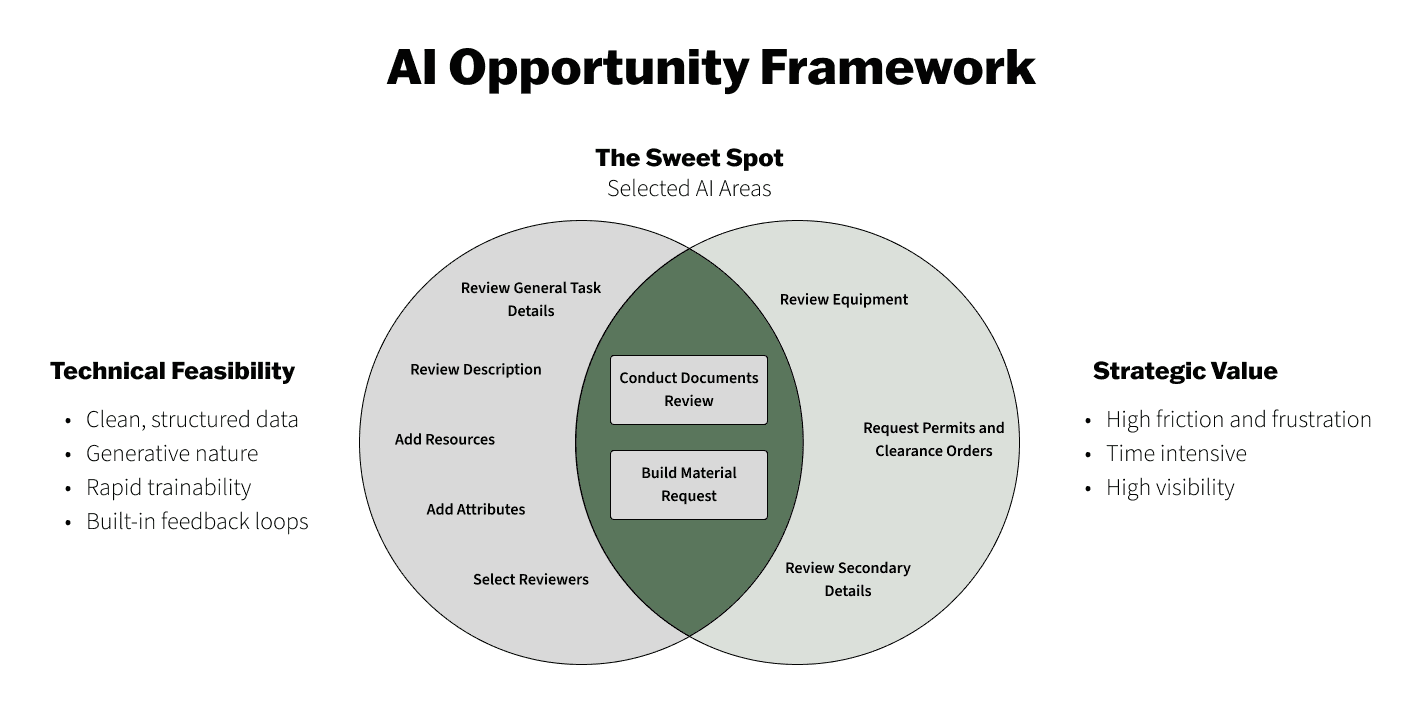
Before committing to a specific solution, I collaborated with our AI engineers and Product Owner to establish a framework for selection. We needed to ensure that we weren't just implementing "AI for AI's sake," but were targeting areas where Generative AI had a legitimate competitive advantage over traditional software logic.

We established two sets of criteria to filter our opportunities:

Technical Suitability (The "Can We" Factor)

For an LLM implementation to be successful and maintainable, the target area needed:

  • Clean, Structured Data:

A pre-existing, high-volume dataset available for immediate training

  • Generative Nature:

Outputs that are text-based or list-based (easily tokenized), rather than complex graphical or multimodal outputs

  • Rapid Trainability:

A scope narrow enough to train and deploy an MVP quickly, allowing us to demonstrate immediate value and secure continued funding

  • Built-in Feedback Loops:

A workflow where user acceptance or rejection of AI suggestions could be captured to fine-tune the model over time

User and Business Value (The "Should We?" Factor)

Beyond technical feasibility, the implementation had to drive measurable operational improvements:

  • High Friction & Frustration:

We targeted areas frustrating tasks that users dreaded. Alleviating this frustration was key to overcoming skepticism and driving adoption

  • Time Intensity:

Tasks that required significant manual effort, where automation would yield clear, quantifiable efficiency gains

  • Strategic Visibility:

The solution needed to be high-profile. Solving a "trifling" problem wouldn't move the needle; we needed to prove AI could handle mission-critical operations to validate the organizational strategy

The Documents Review and Material Request portions of the task planning process ended up being the areas that we selected for AI development. They were the only two areas that fit the criteria of both strategic value and technical feasibility.

Problem Area Match

Now that we've established that the AI feature development will focus on the Documents Review and Material Request, let's explore these sections further and identify specific problems that AI is well-suited to solve.

Revisiting Prior User Research

Because the Material Request and Documents Review are among the most critical parts of the planning process, we did not need to start our discovery from zero. These areas were already the subject of continuous research and previous optimization efforts.

We knew from our ongoing research and feedback gathering that, despite previous feature enhancements targeted at these areas, users were still facing significant friction. To validate the specific opportunities for AI, we synthesized data we had previously gathered from four primary qualitative methods:

Contextual Inquiry

We watched workers plan a variety of tasks, taking notes and recordings that we could refer back to.

Surveying

We sent surveys to key users to gather information in an efficient manner.

User Interviews

We sat down with users, usually in a 1:1 setting, and discussed pain points in the planning process.

Workshops

We met with groups of workers, and conducted whiteboard-based exercises to understand how they think about planning problems and how they visualize solutions.

We balanced these qualitative insights with quantitative tracking. By feeding in-app analytics and KPIs directly into Power BI dashboards, we could cross-reference user sentiment with actual behavior. This allowed us to see exactly where users were spending disproportionate time, confirming that the "pain" expressed in interviews was backed by hard data.

A couple examples of insights that we utilized:

Quantitative

Material Requests and Documents Reviews account for more than 50% of the time it takes to plan a task.

Quantitative

AI is designed to enhance human capabilities and decision-making, acting as a powerful tool for productivity rather than a replacement for the workforce.

Qualitative

"I have to take all these pieces of these documents that I've pasted here and roll them up into my work plan procedure."

Qualitative

"… if the material for the task is now obsolete, I have to search through the notes and vendor manuals to find an adequate replacement part."

Quantitative

Material Requests and Documents Reviews account for more than 70% of the time it takes to plan a task (on average).

Quantitative

AI is designed to enhance human capabilities and decision-making, acting as a powerful tool for productivity rather than a replacement for the workforce.

Qualitative

"I have to take all these pieces of these documents that I've pasted here and roll them up into my work plan procedure."

Qualitative

"… if the material for the task is now obsolete, I have to search through the notes and vendor manuals to find an adequate replacement part."

Previous Optimization Efforts: The Limitations of Traditional UI

Before we had the option to use generative AI, we aggressively optimized the existing UI to reduce friction. We successfully streamlined the retrieval of information, but we hit a ceiling when it came to the synthesis of that information.

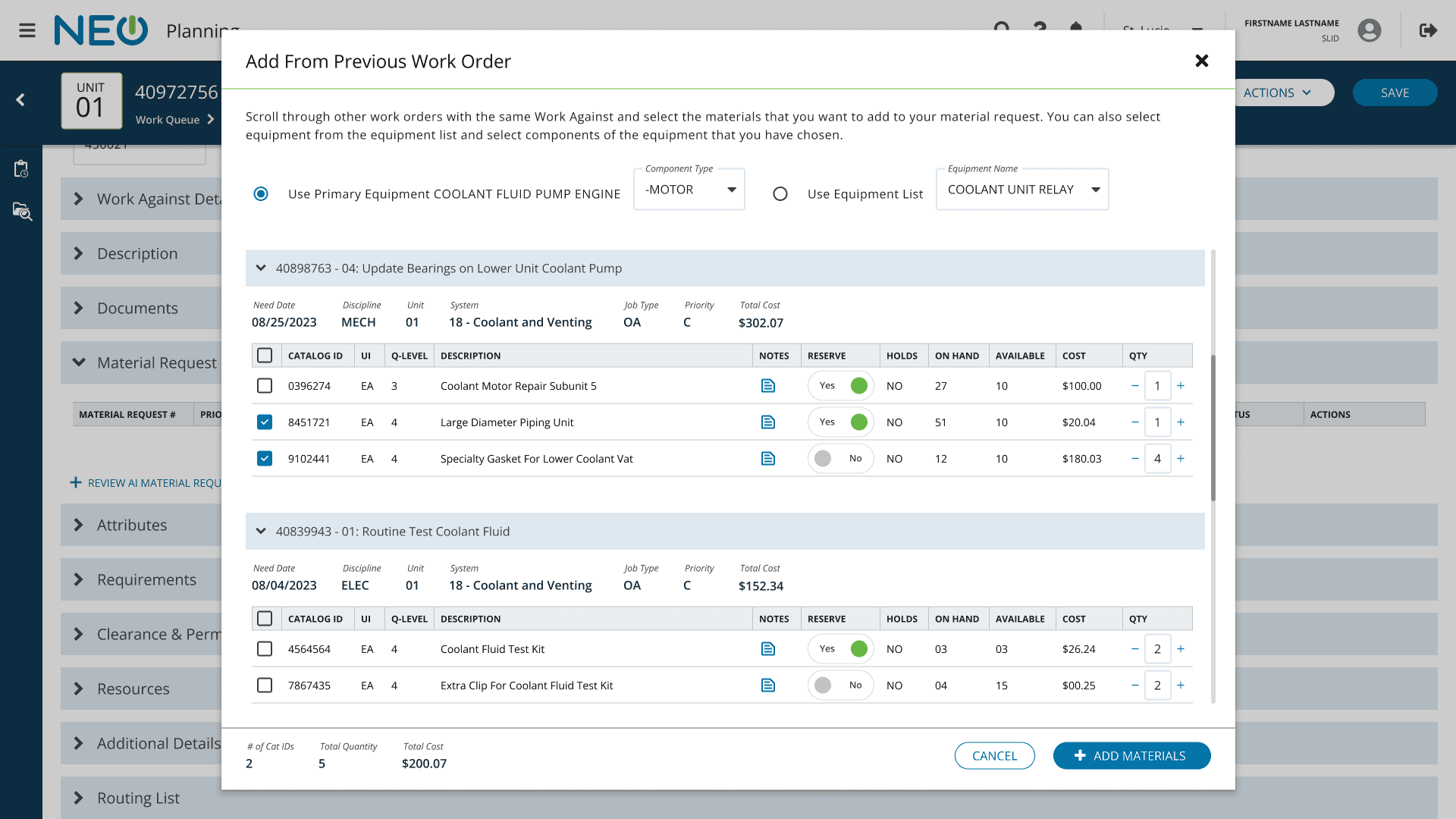
  1. Adding Materials from Past Work Orders

Our research revealed that Planners rarely started from scratch; their mental model was to look at previous work orders for the same equipment and copy from the materials list.

  • The Solution:

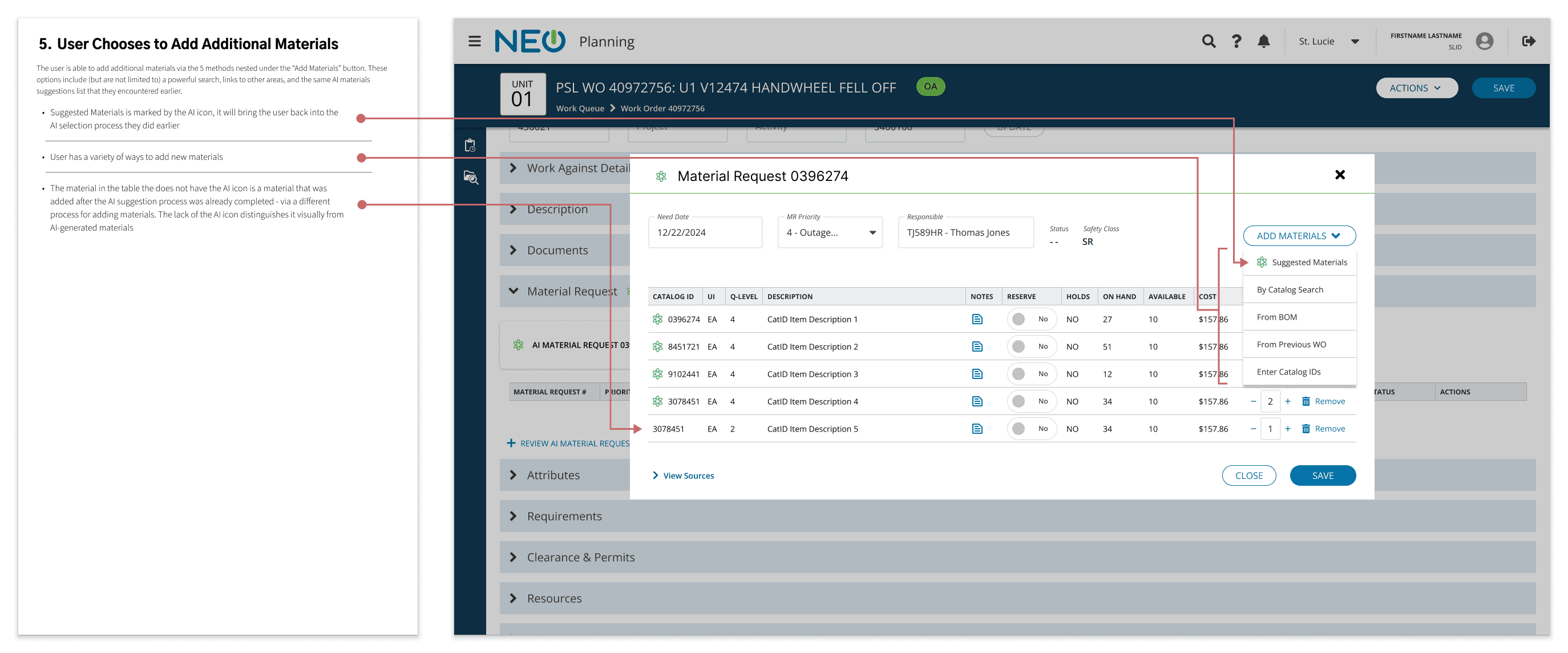
We built a "View Equipment History" feature. Instead of forcing users to open a separate tab to hunt for old work orders, we injected a history module directly into the workflow. This allowed users to view and one-click import materials from past jobs on the exact same asset. We also overhauled the search engine to be domain-specific, handling the nuances of part numbers and versions.

  • The Limitation:

While we made finding known items faster, the process was still fundamentally manual. If a Planner encountered a novel repair or a "corner case" where history was thin, they still had to engage in a time-consuming "hunt and peck" strategy to figure out what they needed.

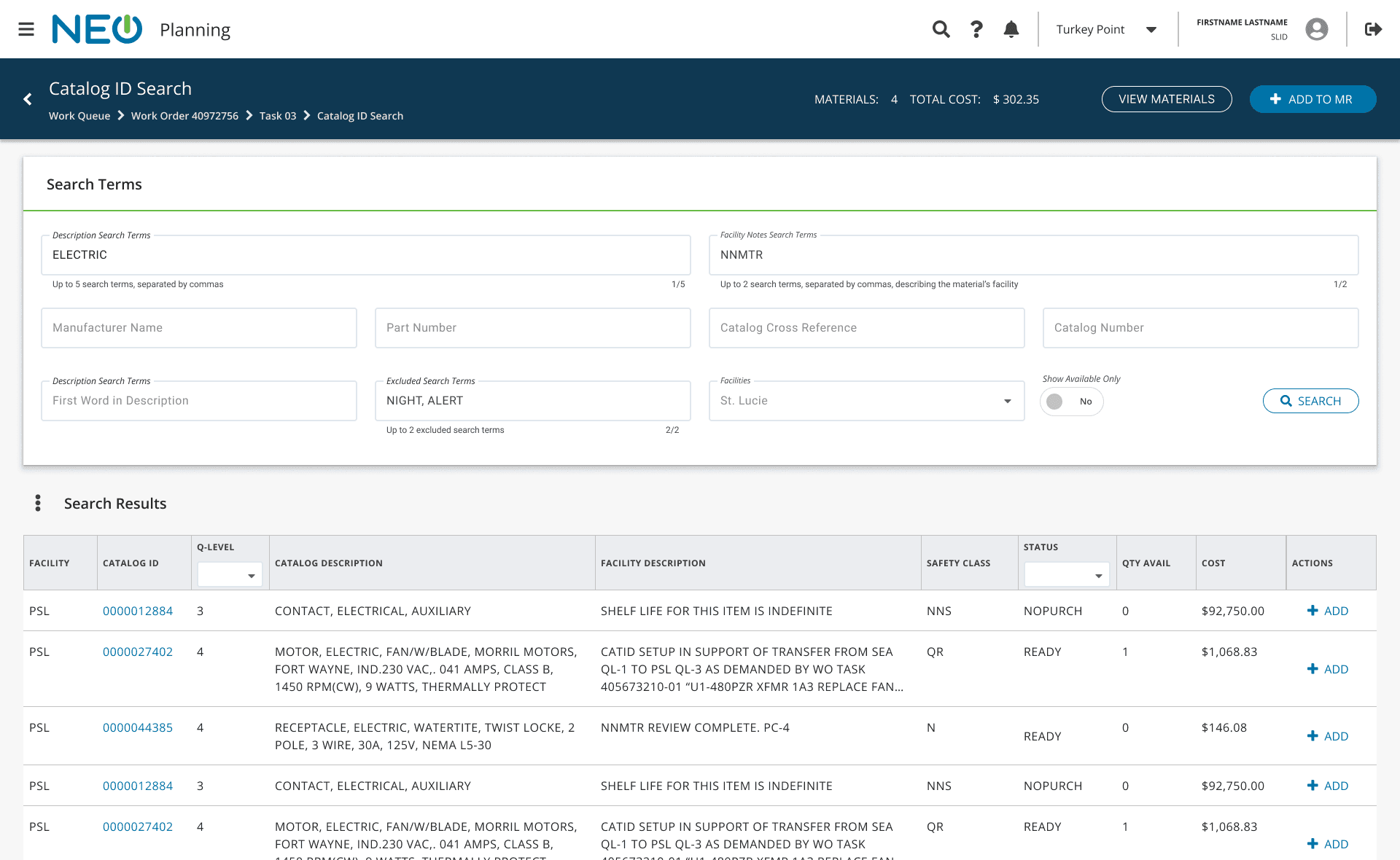
  1. Advanced Materials Search

Combining a UX audit of the Material Request portion of the app with User interviews, we discovered that the search functions being provided to users were either too weak to be useful or were in direct conflict with the planners’ mindset regarding materials searching. The search that was built into the Material Request lacked many search fields and filters that were needed and did not provide enough information about the materials being selected. There was also a larger company-wide search feature, but it had a key mismatch with the planners’ mindset: the search was fundamentally an “or” search instead of an “and” search. This means that if a planner used “handwheel” and “coolant valve” as search terms, they would be shown any materials associated with a handwheel or coolant valve. Planners needed a search that would return only handwheels that were associated with a coolant valve: materials associated with both of the two terms rather than either one individually.

  • The Solution:

We built an “and“ search with advanced filtering. This served users needs by giving them powerful filters as well as a search boolean logic that fit their mental model. We also built in a “shopping cart” function that allowed users to search for and add multiple materials without leaving the search feature.

  • The Limitation:

While we made finding unknown items faster, the searching process was still fundamentally manual. Furthermore, if a basic, cursory search did not yield acceptable results, planners still had to spend time to come up with a proper filtering method that would produce the materials they were looking for. The formulation of a search itself could still be time-consuming.

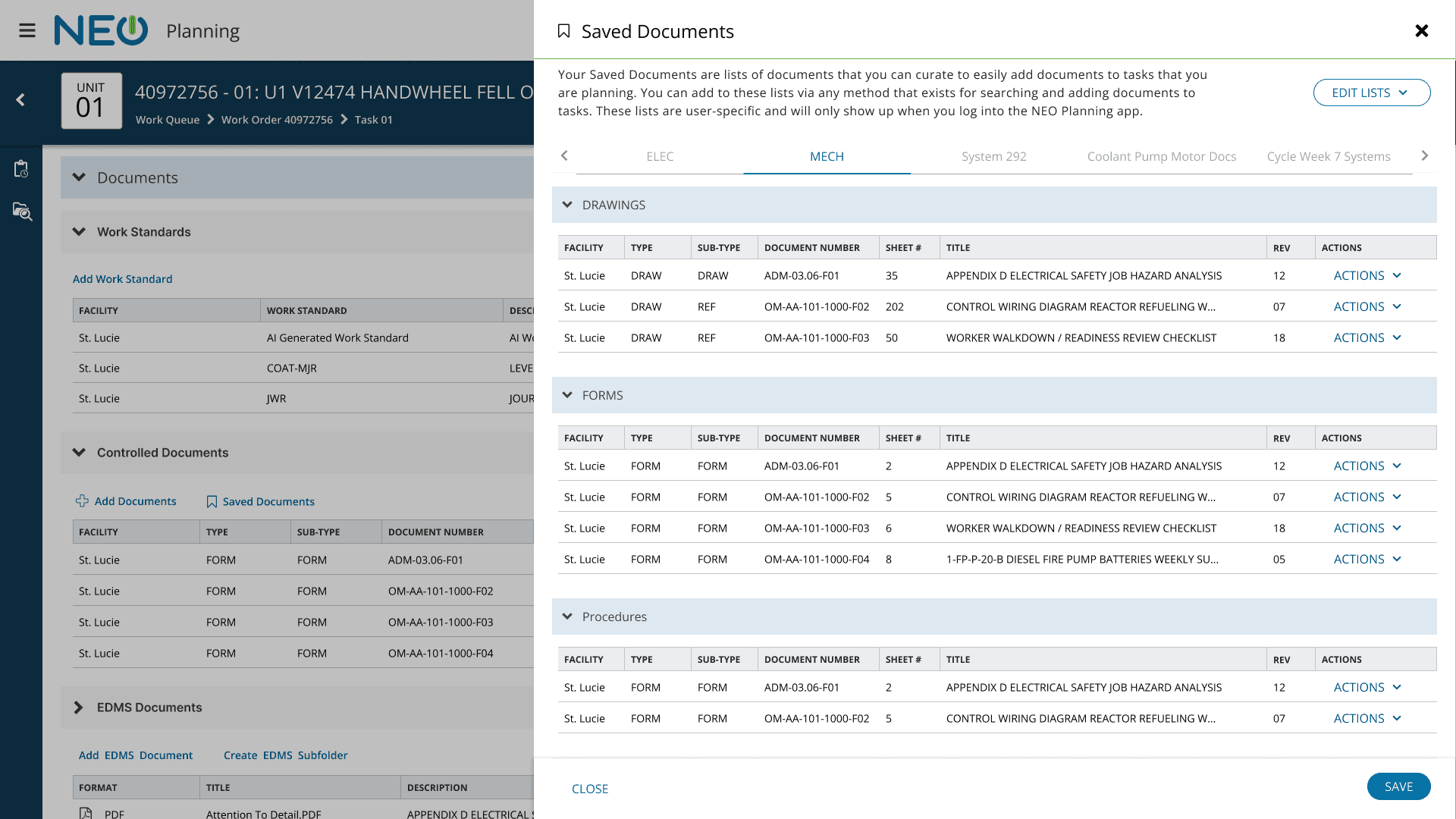
  1. Saved Documents Uploads

Combining specialized KPI monitoring, data research, surveys, and user interviews, we discovered “documents clusters”: groups of documents that were commonly uploaded together. We combined this scenario with another user need: if a document was difficult to find, planners would keep the details of the document in a word or excel document on their computer so that it was easier to retrieve a second time. Thus, we designed the “Saved Documents” feature, which allowed users to save their document clusters and their difficult-to-find documents as saved documents lists for easy retrieval on future work order tasks. e also added a "Custom Upload" feature, acknowledging that not every necessary document lived within the strict version-controlled database.

  • The Solution:

We introduced "Saved Documents" allowing Planners to bundle frequently used reference documents and save difficult-to-find documents for quick retrieval. We also added a "Custom Upload" feature, acknowledging that not every necessary document lived within the strict version-controlled database.

  • The Limitation:

These features excelled at managing reference material (static PDFs), but they offered no help with the most cognitively demanding task: authoring the Work Plan. Writing the step-by-step instructions remained a "blank page" problem. The user still had to mentally synthesize disparate data and type out complex instructions from scratch.

The Core Challenge: The Synthesis Barrier

Our retrospective on previous features revealed a critical insight: We had successfully solved the problem of retrieval, but we had not solved the problem of composition. We had given Planners powerful search engines, history modules, and saved lists that matched their mental models. Yet, the act of planning still required them to act as human data processors. A Planner might need to cross-reference four or five different components or dig through years of history just to find the right precedent for a single material list. No matter how much we optimized the UI, the workflow remained fundamentally manual: Look up, then verify, then add the selected artifact(s) to the task.

The Problem Statement

Despite having optimized tools for finding information, Planners are still burdened with the heavy cognitive load of synthesizing fragmented data and the manual labor of composing complex work plans from scratch.

This specific bottleneck—the rapid scanning and cross-referencing of historical data—is exactly where Large Language Models excel. An AI can scan thousands of past work orders in the time it takes a human to click a single tab.

We realized our goal was not to build a better search bar, but to fundamentally shift the user’s role:

  • From:

A manual researcher hunting for data and typing out documents.

  • To:

A subject matter expert reviewing high-quality drafts generated by the system.

Note: The robust search and history tools we previously built remain essential. They now serve as a "safety net," allowing users to manually fill in gaps or handle edge cases if the AI generation is incomplete.

Defining Solutions

Lower Fidelities

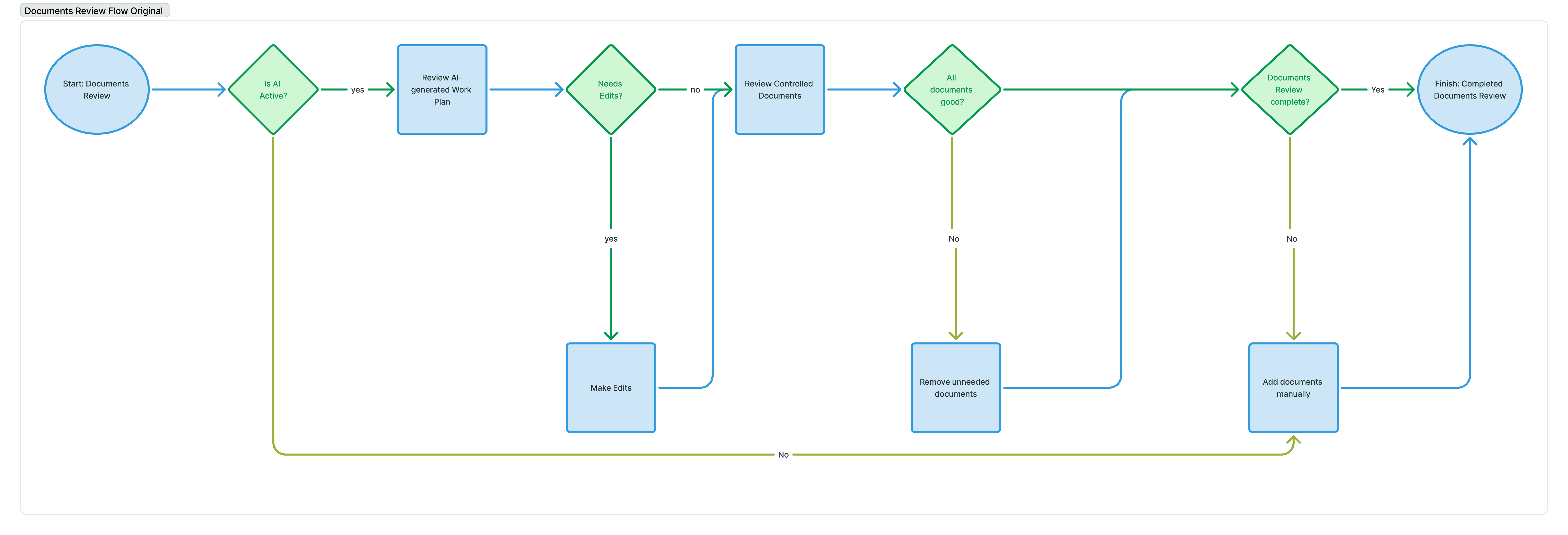
With the problem space defined ("The Synthesis Barrier"), we moved into the solution space. We began by mapping the logical pathways, strictly adhering to the AI Ethics Principles we established at the start of the project.

Mapping the Logic: User Flows

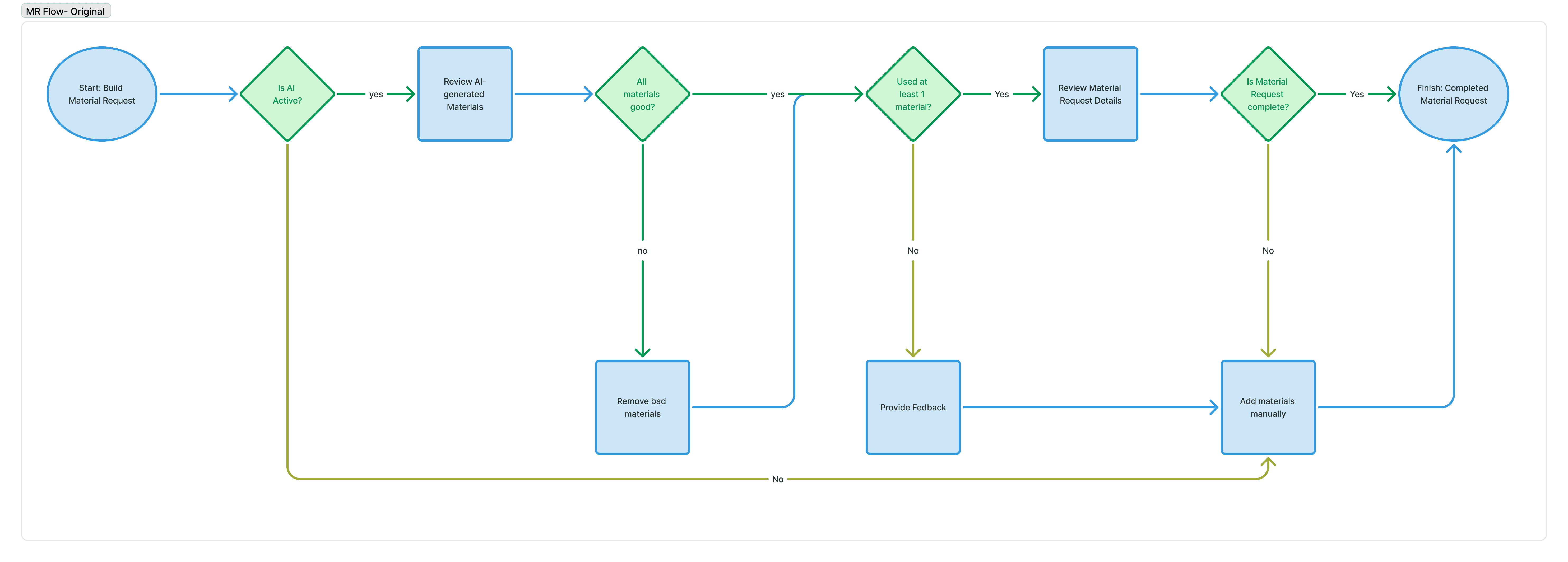
Before drawing a single interface element, I created detailed user flows to define how the AI would interact with the existing system. We stress-tested these flows against our Easy Correction and User Control principles, specifically targeting the "corner cases" where AI typically fails:

  • Inaccuracy:

If the generated Work Plan is vague, how does the user intervene?

  • Incompleteness:

If the AI misses a critical material, document, or work plan section, how does the manual "safety net" kick in?

  • Feedback Loops:

We designed specific pathways for users to flag poor generations, ensuring that human dissatisfaction became data for model fine-tuning.

To avoid designing in a silo, we leveraged our existing "Sprint User Review"—a standing forum where stakeholders and users from various groups could critique work-in-progress. By exposing these early flows to a broad audience, we gathered immediate feedback on our logic before committing to pixel-perfect designs.

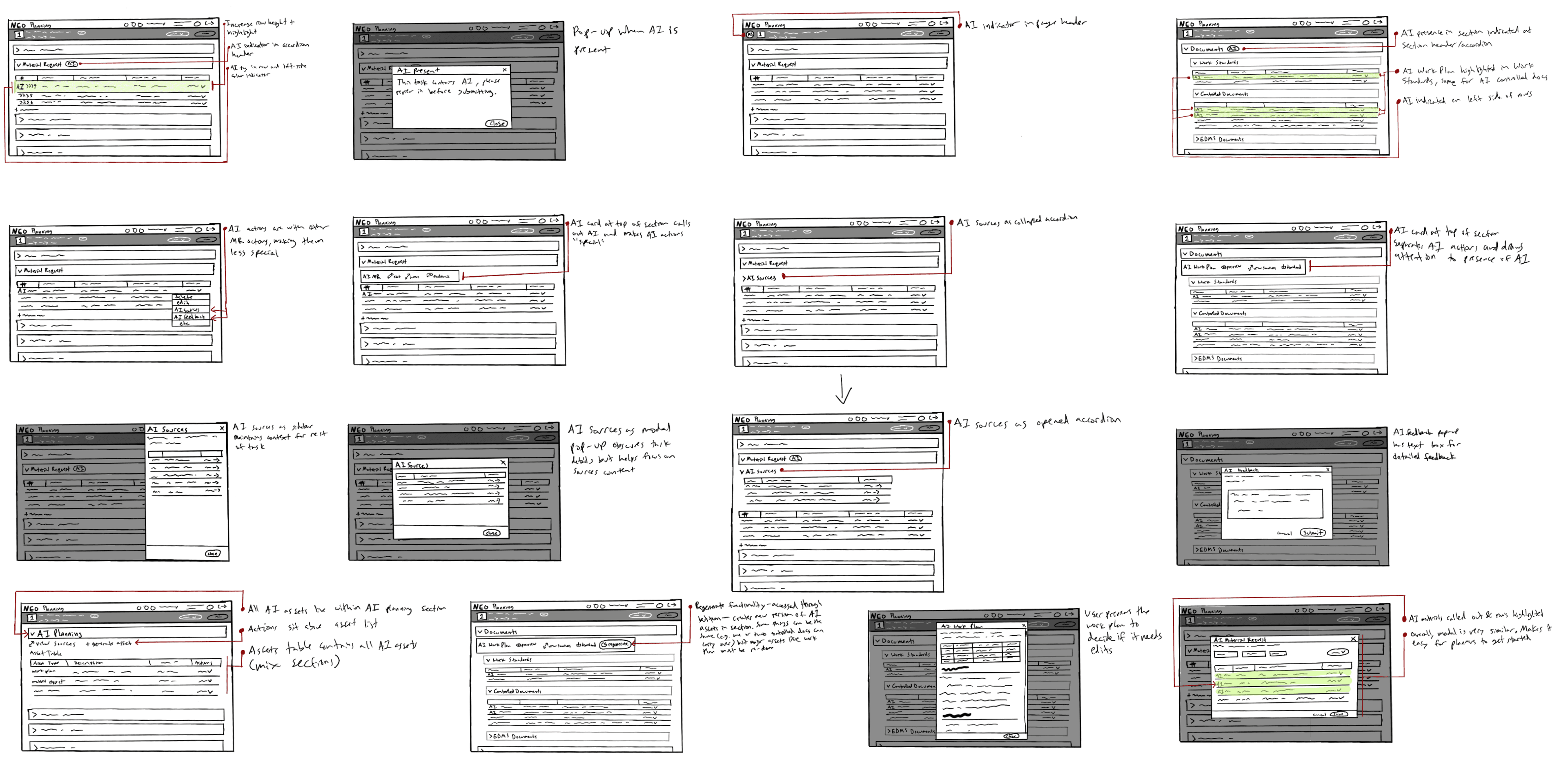
Divergent Ideation: Sketching

We then moved to hand-sketching to generate volume. My goal was to explore every possible layout configuration—from conservative sidebar integrations to "outlandish" AI-dominant interfaces.

Convergence: The Feasibility Filter

We reviewed these sketches with Product Ownership and AI Engineers to filter our ideas through the lens of Technical Feasibility and our Core Principles. This was a critical "convergent" phase where we had to kill several promising concepts:

Rejected: The "Siloed AI" Section

  • Concept:

A dedicated area where users would go to generate plans before importing them.

  • Why it Failed:

It violated Seamless Integration. Users shouldn't have to leave their established area within the app to use a new tool; the tool should be placed where they already work.

Rejected: The "Regenerate" Button

  • Concept:

Allowing users to adjust parameters and re-roll the generation if they didn't like the result.

  • Why it Failed

AI Engineering flagged that supporting dynamic regeneration would add significantly more work on their side, risking the MVP timeline. Instead of building complex regeneration tools, we leaned into the principle of Easy Correction—giving the user robust manual editing tools to fix the specific parts of the output they disagreed with, rather than waiting for the AI to try again.

Low-Fidelity Prototyping

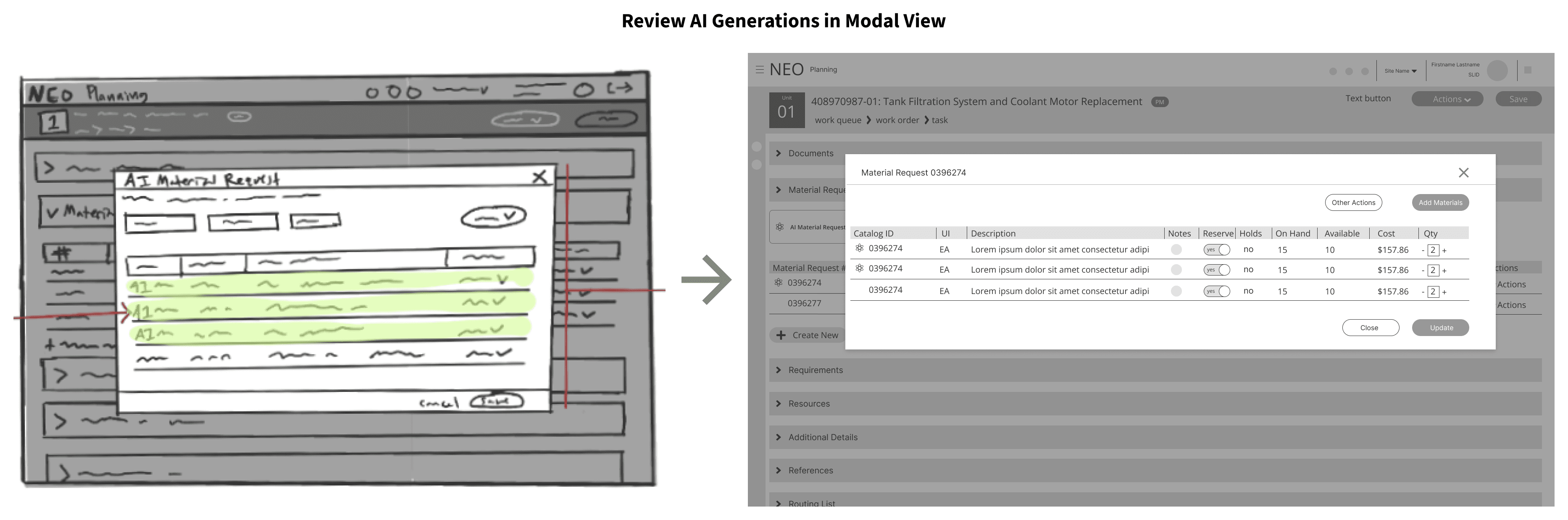
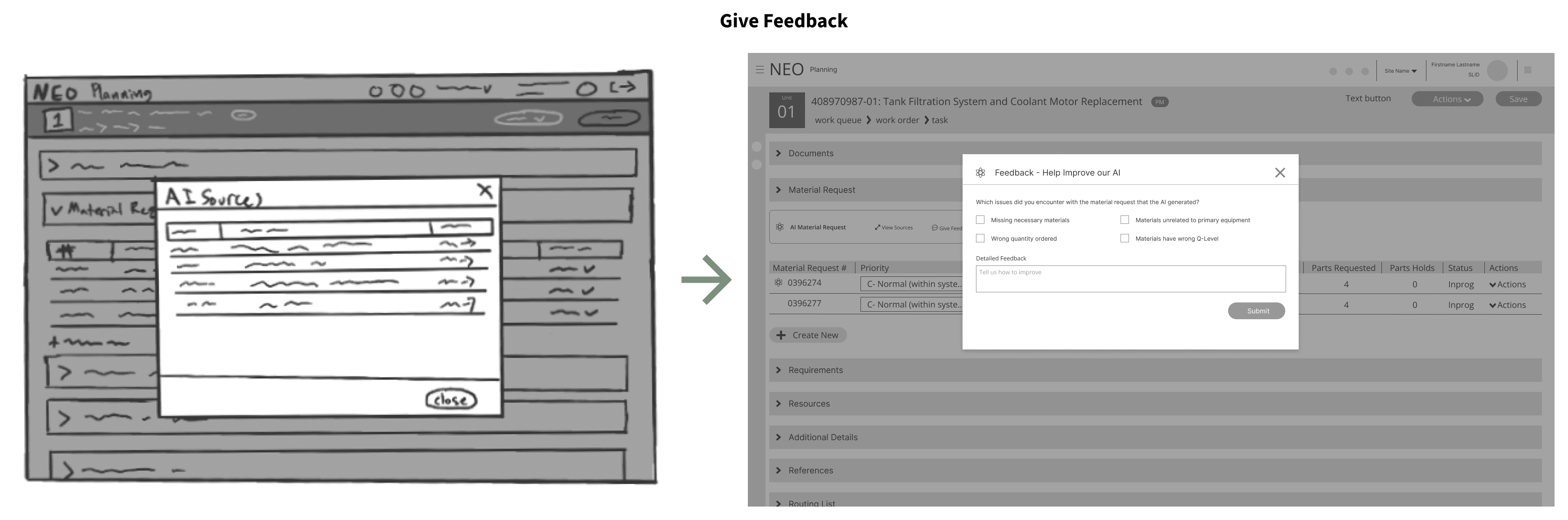
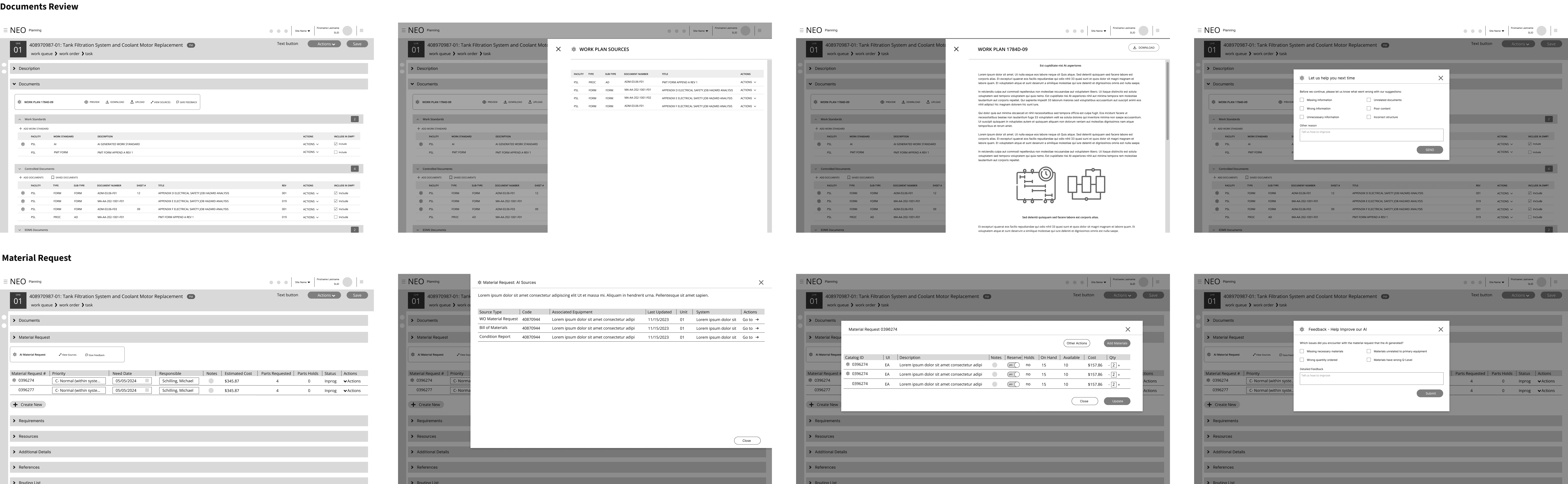
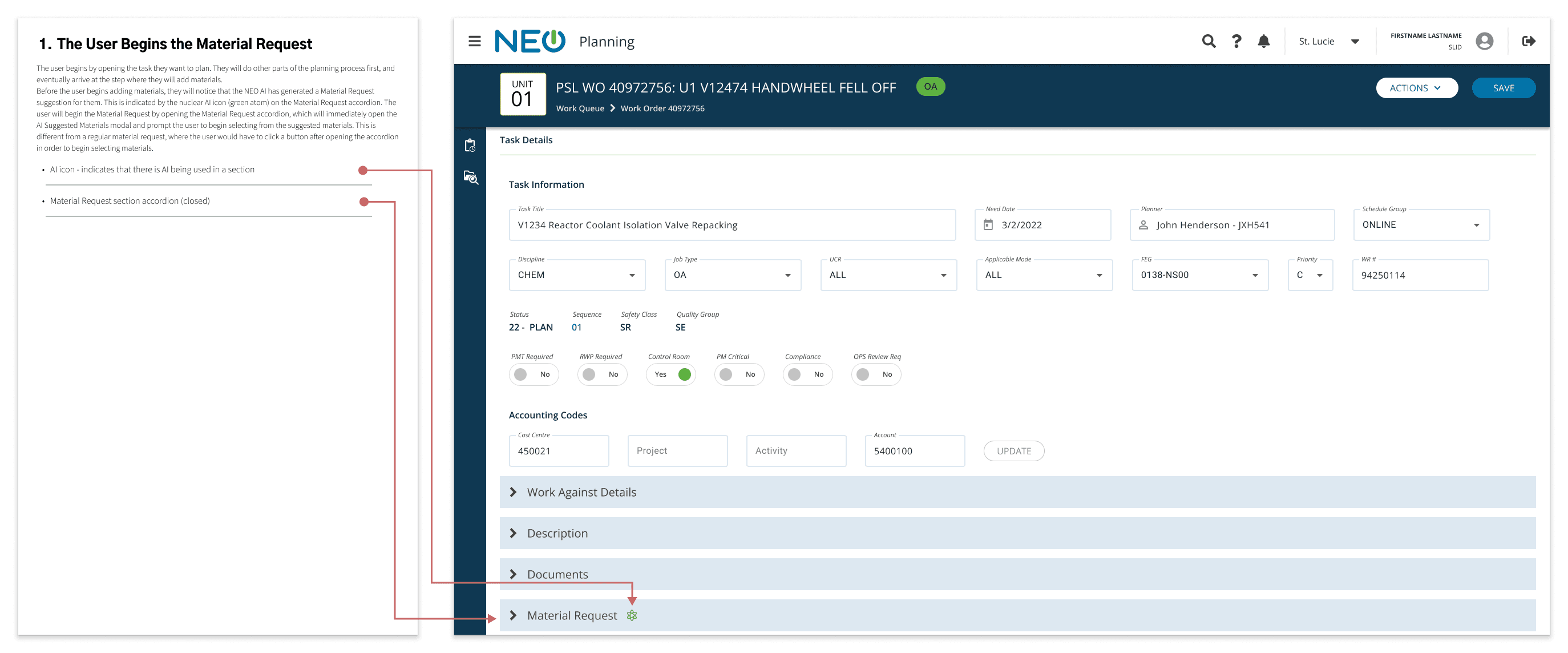
We took the survivors of the feasibility review and built a functional Low-Fidelity prototype. This allowed stakeholders to actually click through the "Happy Path" and feel the flow of the AI integration without being distracted by visual design details.

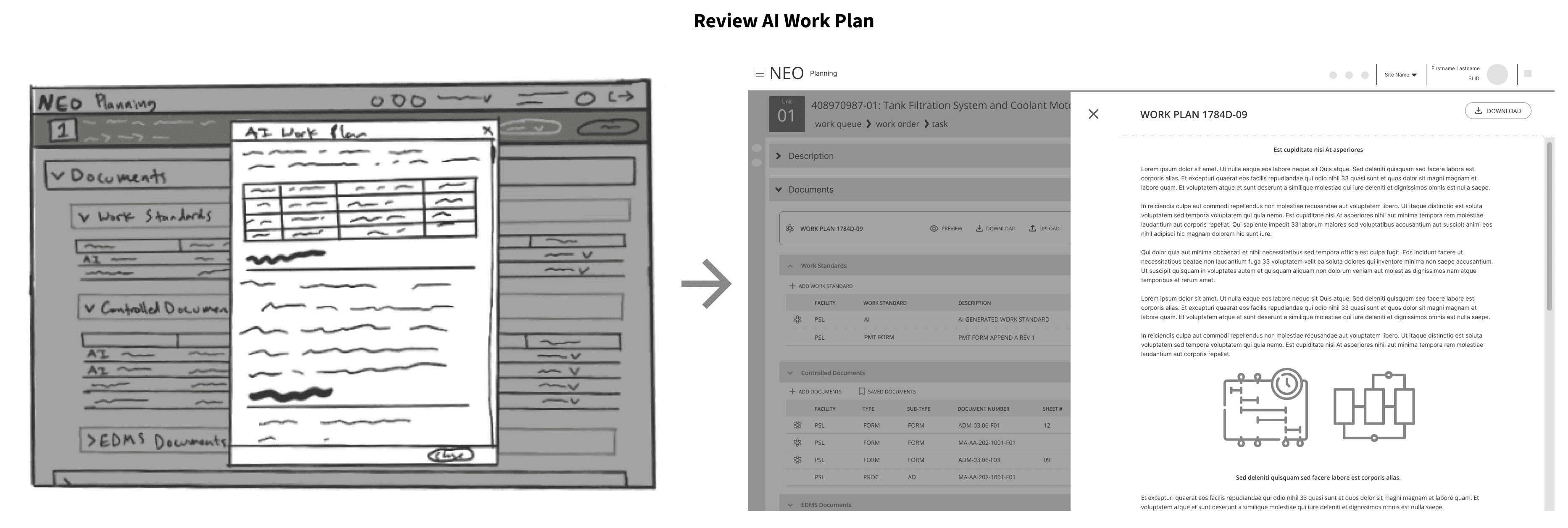
Documents Review

Material Request
Early Validation: Testing the Designs

Because of the tight development timeline, we couldn't afford to wait for high-fidelity designs to validate our assumptions. We ran abbreviated usability tests with actual Planners using our grayscale low-fidelity prototypes.

The Test Criteria

Our primary goals were to test recognition and awareness, trust and control, and feedback efficiency:

  1. Recognition:

Could they tell "AI" was happening without color cues?

  1. Awareness:

Could they easily locate and explain all of the effects that the AI was having on the task they were planning?

  1. Control:

Could the users utilize the tools that we gave them to work with the AI? Are we missing any important tools that they need?

  1. Trust:

Did the users feel confident in their ability to fix the AI’s mistakes efficiently?

  1. Feedback:

Did the users understand how to give us feedback on the AI’s performance? Was the feedback mechanism innocuous enough that they actually would?

The Results: Validation and Friction

The core interaction patterns (Atom icons, inline integration) tested well. Users appreciated that we didn't "blow up" their workflow with a transformative new UI. However, a critical friction point emerged regarding the user’s ability to control the AI, and their trust in their corrective ability.

  • The Planners' Fear:

Planners were terrified of being "stuck" with a bad generation. They worried that fixing a hallucinated Material Request or Documents Review (especially a hallucinated work plan  within the Documents Review) would take longer than writing one from scratch, negatively impacting their performance metrics.

  • Management Pressure:

Conversely, Upper Management feared "resistance to change." They wanted to force adoption and were skeptical of giving users any way to opt-out.

The Pivot: The "Manual Override" Compromise

This tension led to the most significant design pivot of the project. To bridge the gap between user anxiety and business mandates, I introduced the concept of a Section-Level AI Toggle.

The Feature:

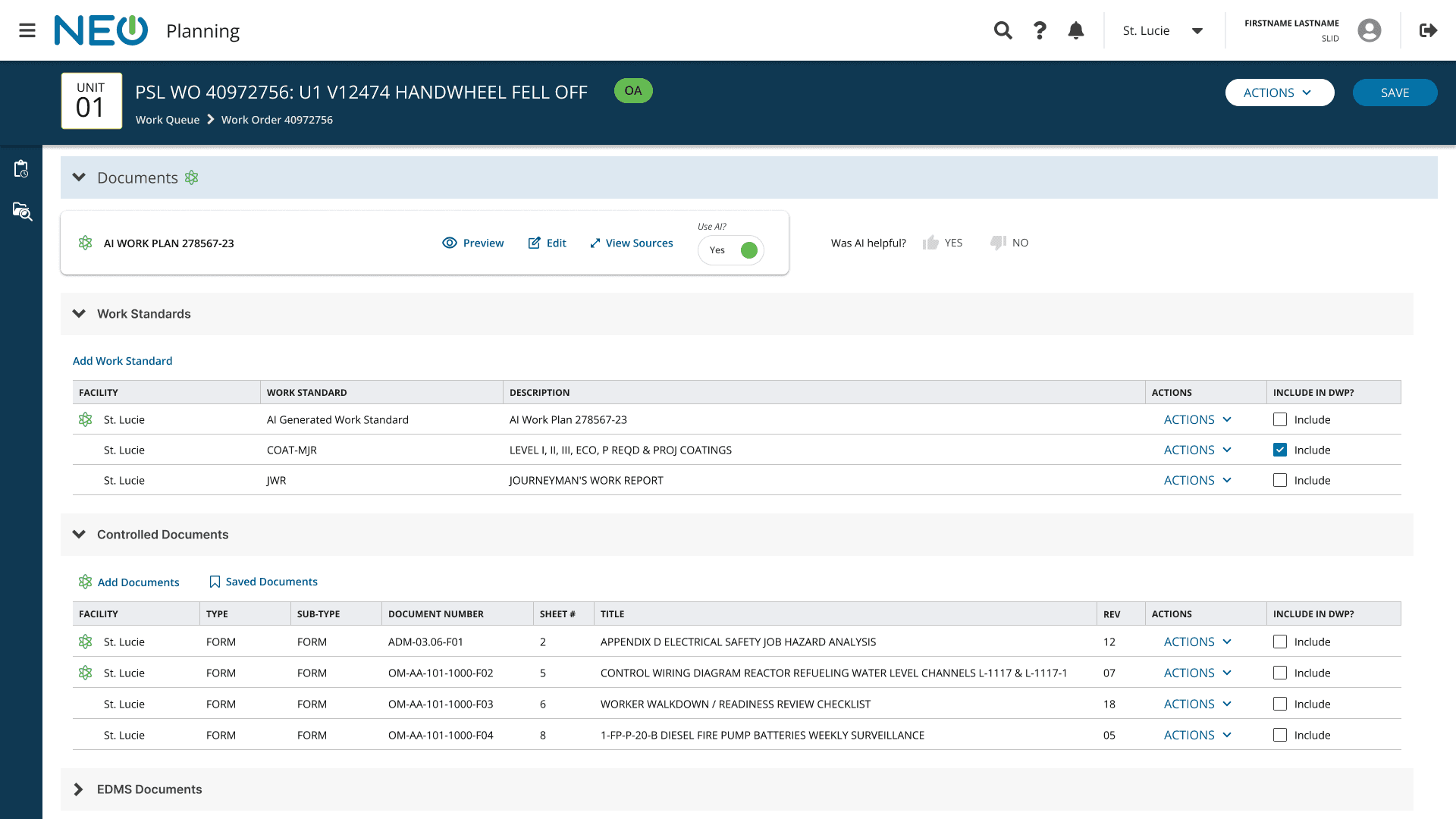
We added a toggle switch to the "AI Card," allowing users to completely disable the AI for a specific section (e.g., turn off only the Material Request AI while keeping the Documents Review AI).

The Negotiation:

This feature faced initial resistance from leadership, including the Nuclear VP, who feared users would simply turn it off and never look back. I negotiated a strategic compromise to satisfy both sides:

  1. User Protection

Users got their "Manual Override," ensuring they were never trapped by a bad generation.

  1. Business Accountability:

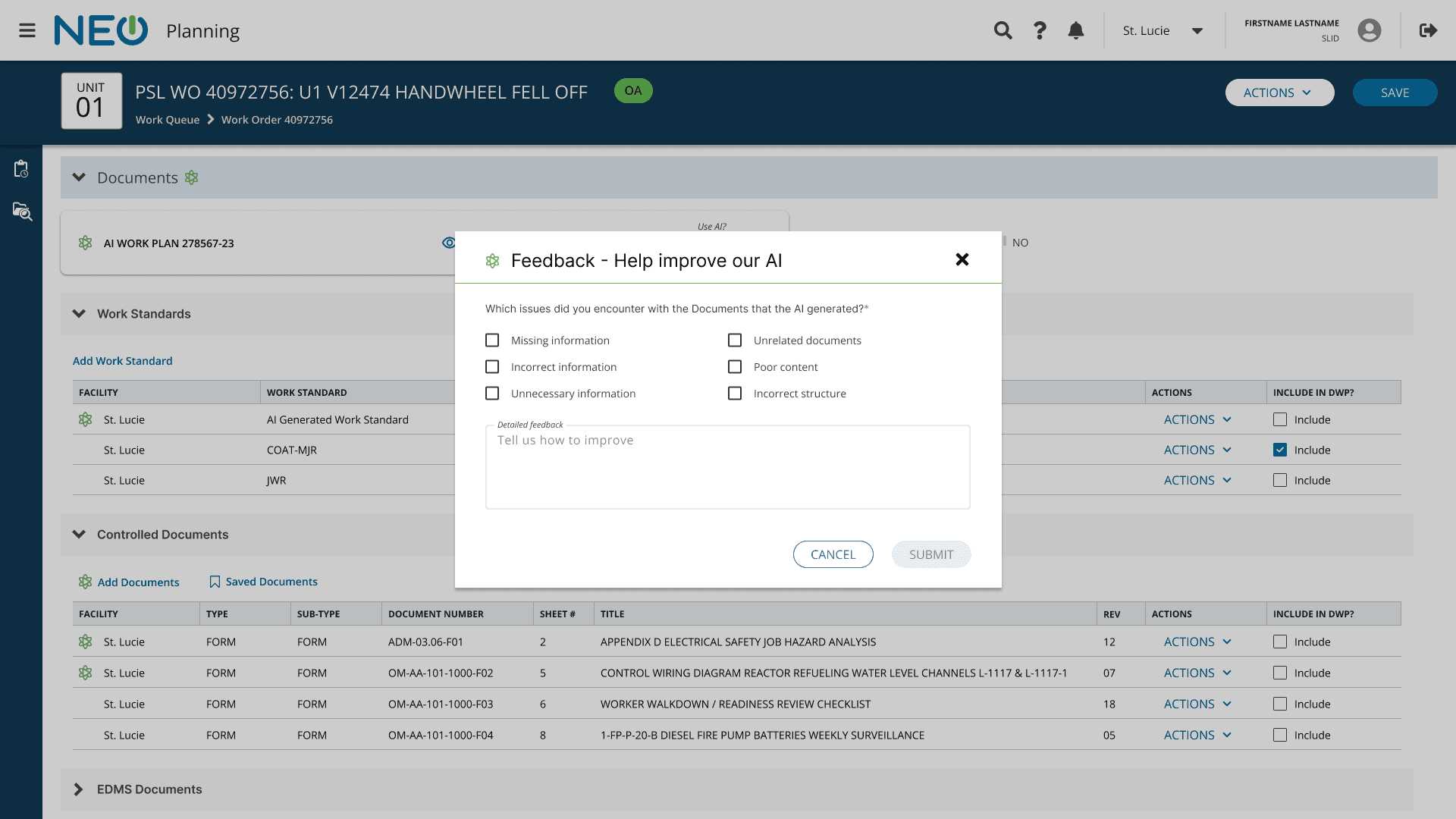
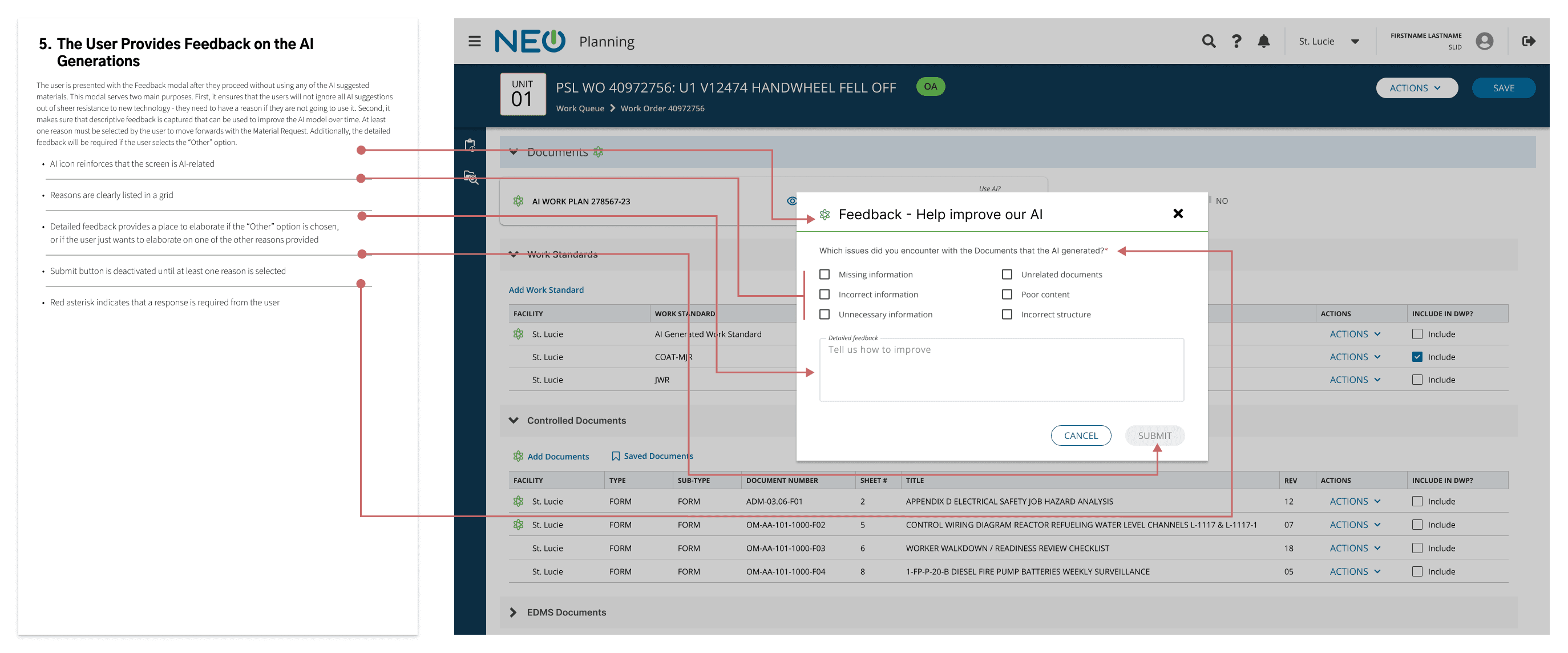
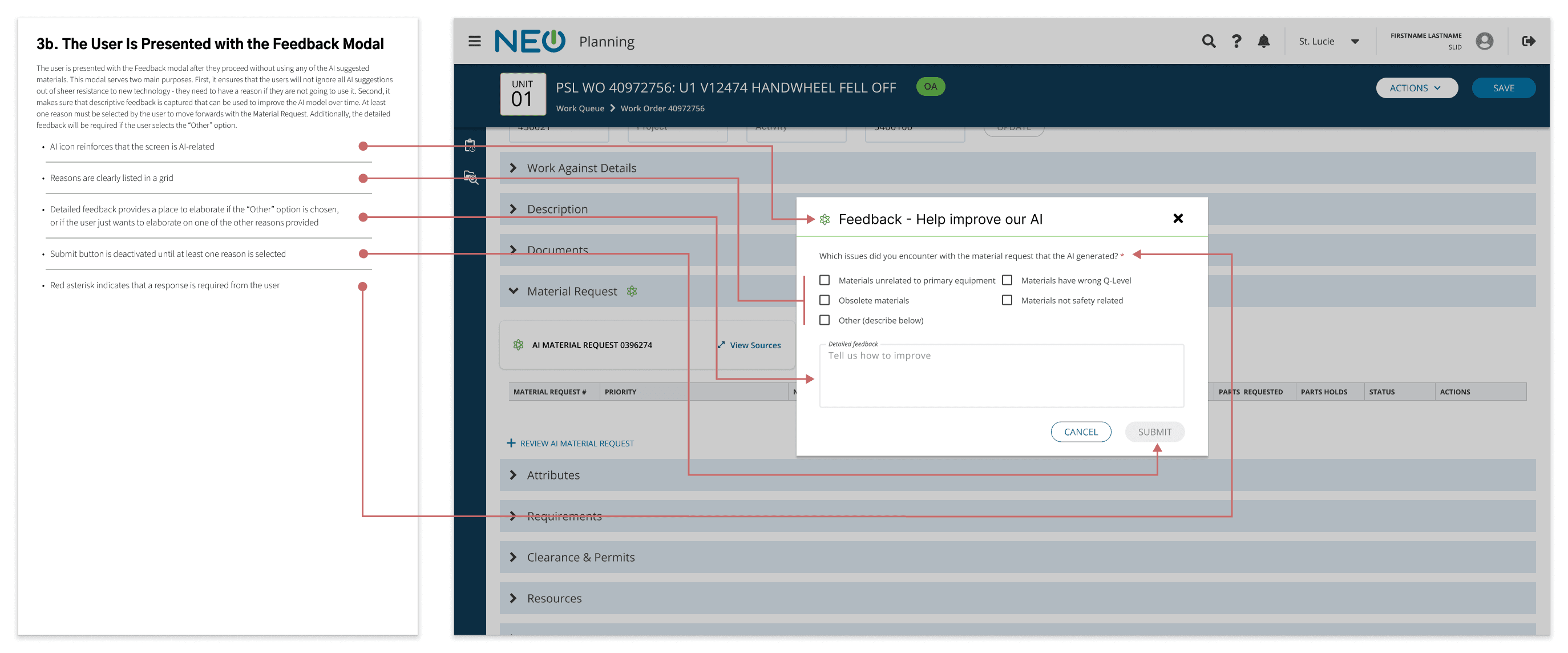
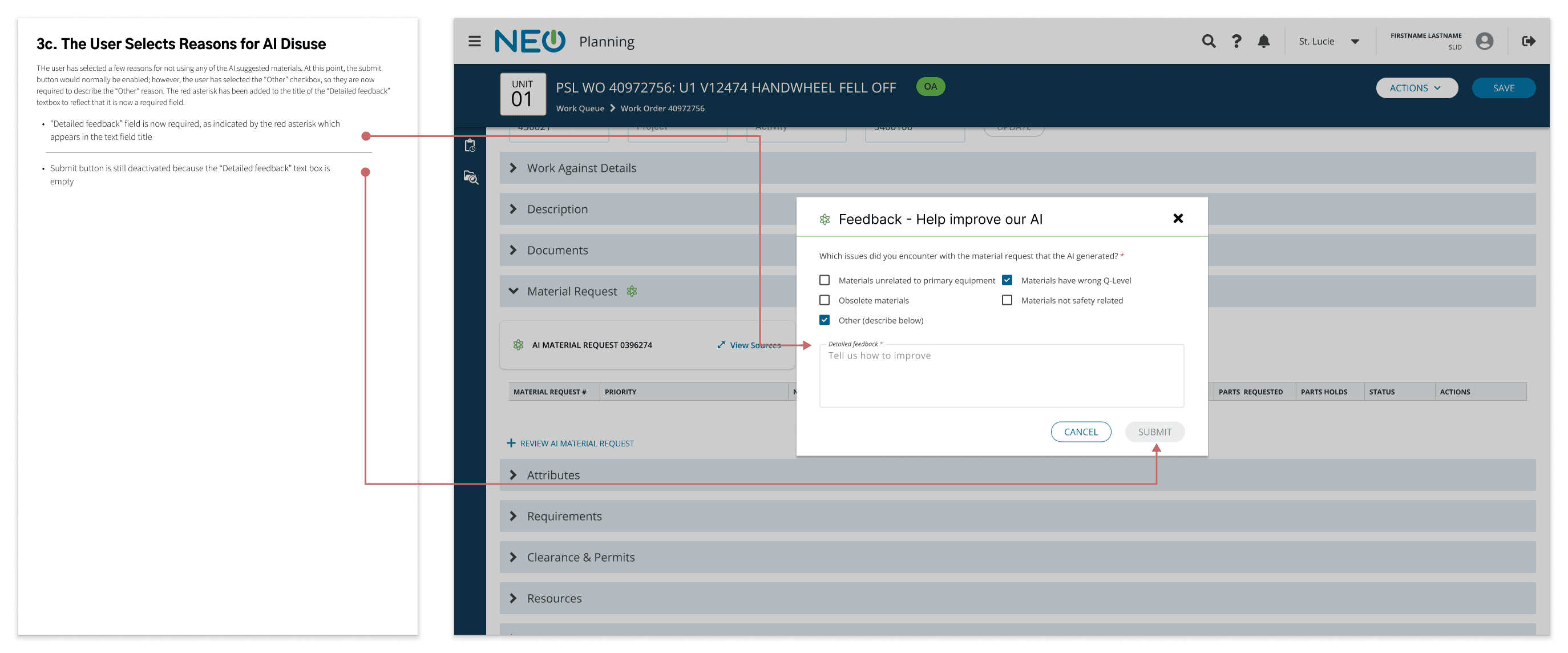
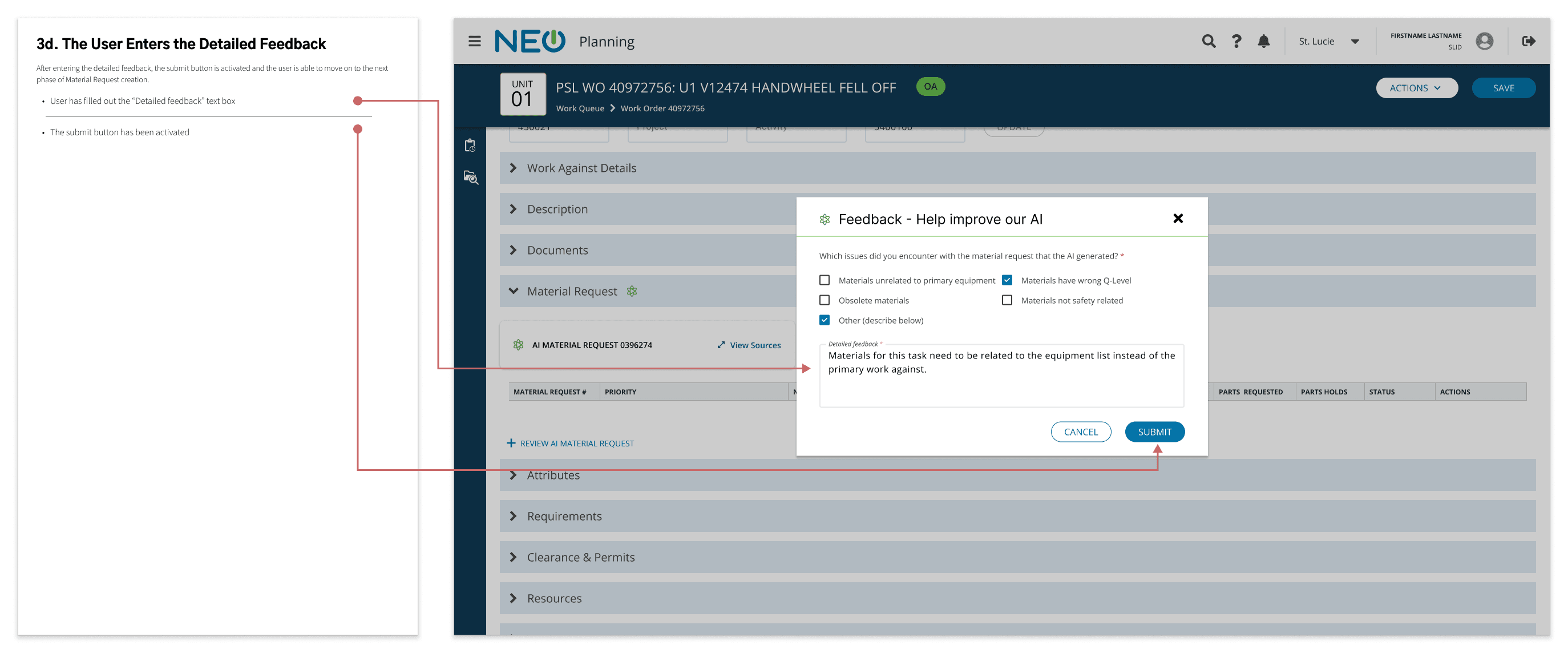
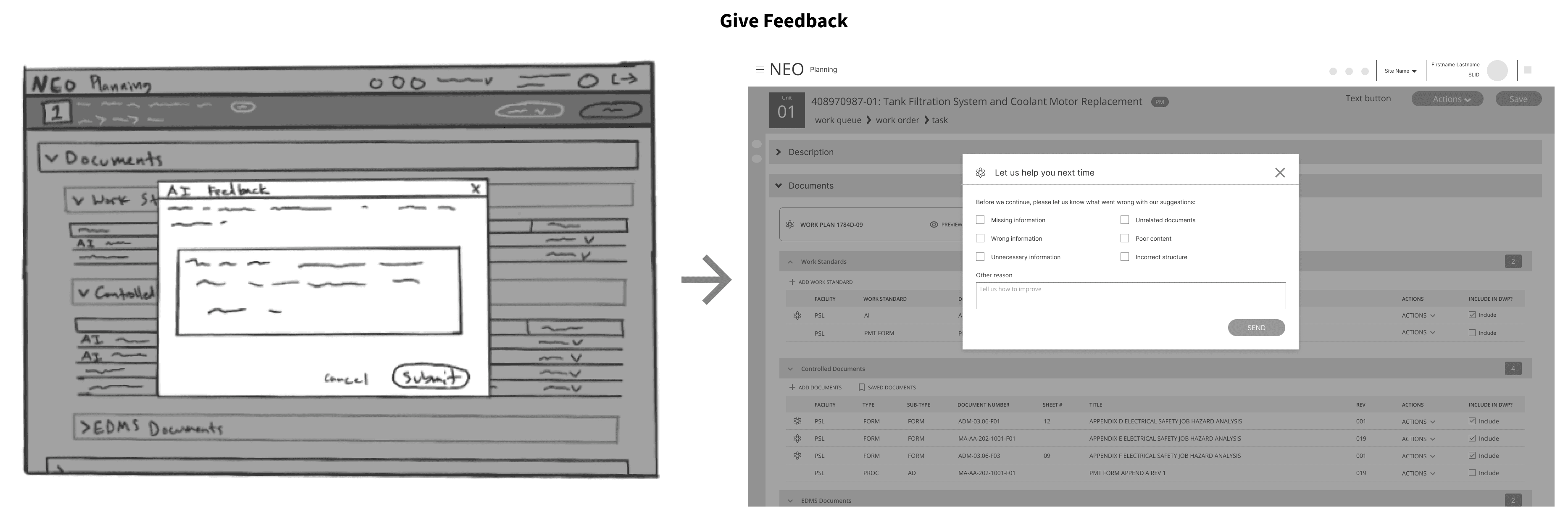
To use the switch, users were required to select a feedback reason (e.g., "Obsolete Materials," "Unnecessary Details"). This ensured that "opting out" generated valuable training data rather than a data void.

  1. Transparency:

We agreed to review these "Opt-Out Reasons" in our standing Sprint Reviews, ensuring management that the feature wasn't being abused.

Refining the Feedback Loop

We also used the testing sessions to co-design the feedback options with the Planners. We created and refined a set of "One-Tap Presets" for common failure modes. This respected their time while ensuring we got structured data to improve the model.

The Hidden Blocker: Work Plan Format Fragmentation

Before we could launch the AI for the Documents Review, we hit a fundamental data problem. The "Work Plan" - one of the core artifacts we intended to generate - had no standard structure. Across different sites and disciplines (electrical vs. mechanical vs. chemical, etc.), work plans varied wildly. Some included lengthy background essays; others had strict warning hierarchies. Past attempts to standardize this document had failed due to the deeply conservative culture of nuclear operations. However, to train a single, scalable model, we needed one unified template.

The Strategy: Minimalist Standardization

I led a cross-functional initiative to consolidate these formats. Our strategy was: trimming the "fat" to create a lean, efficient document that the AI could reliably generate.

We removed:

  • Background Info:

Often redundant and rarely read.

  • Embedded Diagrams:

AI image generation was too unreliable for safety-critical diagrams. We shifted these to the "Controlled Documents" section for better accuracy.

  • Generic Statements:

"Fluff" text that diluted the core instructions.

We standardized:

  • Title Page Header:

The layout was simplified and the fat was trimmed so that this section only included information relating to the location within the plant and key, high-level information

  • Warnings:

We negotiated a strict, universal hierarchy for critical safety information.

  • Procedure Structure:

We aligned on a single method for listing instructions and handling "If/Then" scenarios.

The Negotiation: A 6-Phase Campaign

Standardizing a safety-focused document in a nuclear environment is not only a design task; it is also a political one. I structured a 6-phase campaign to systematically dismantle resistance and build consensus.

  1. Individual Discovery:

I interviewed planners one-on-one to understand the why behind their specific formats, avoiding "groupthink" resistance in their initial feedback. After I had that, we then reviewed the findings as a group.

  1. Management Alignment:

I confirmed leadership's desire for standardization to solve staffing mobility issues and gathered their thoughts on the feedback provided by the planners.

  1. Executer Verification:

When Planners claimed "The workers need it this way," I interviewed the workers directly. I found that most "requirements" were actually just preferences or myths, allowing me to clear a major blocker.

  1. Drafting and Feedback:

I created a draft template and gathered feedback, isolating genuine constraints from subjective habits.

  1. The "Muscle" Phase:

Where consensus was impossible (e.g., conflicting header preferences), I leveraged executive sponsorship to push a final decision, using the AI project's strategic priority as the lever.

  1. Final Sign-off:

We secured a unified agreement on the template, clearing the path for the AI engineers.

The Organizational Win

This initiative succeeded where others had failed because we applied Product Thinking and Human-Centered Design Methodologies to an operational problem. We didn't just enforce a rule; we researched the user's needs, validated the constraints, and delivered a product.

Beyond enabling the AI, this standardization solved a critical business problem: staff mobility. With a unified format, planners from one site could finally support overloaded teams at another site without battling unfamiliar document structures.

The Final Designs

This initiative succeeded where others had failed because we applied Product Thinking and Human-Centered Design Methodologies to an operational problem. We didn't just enforce a rule; we researched the user's needs, validated the constraints, and delivered a product.

Beyond enabling the AI, this standardization solved a critical business problem: staff mobility. With a unified format, planners from one site could finally support overloaded teams at another site without battling unfamiliar document structures.

High-Fidelity Design: Principles in Action

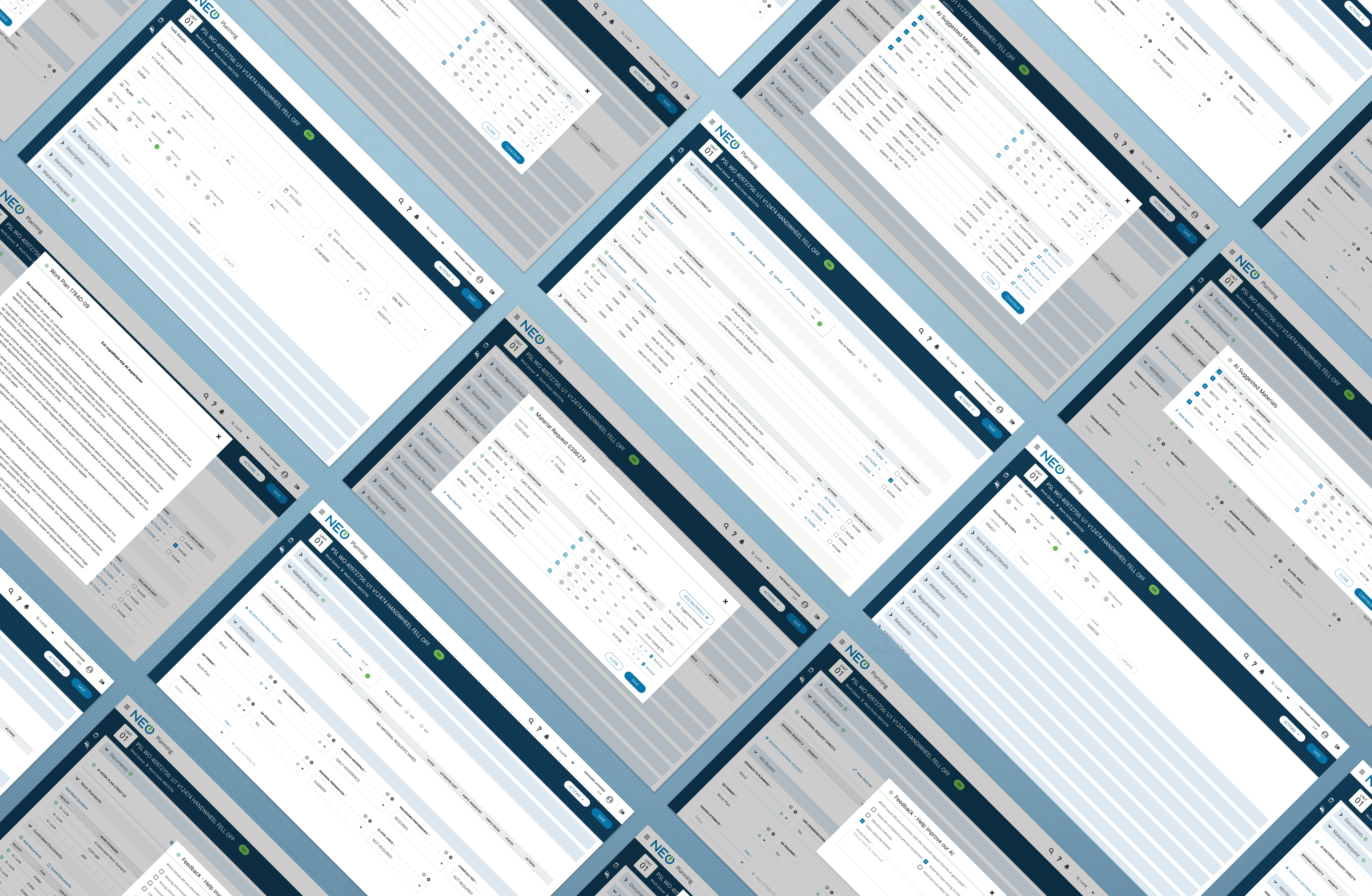
With the logic validated and the document templates standardized, we moved into High-Fidelity. We built a fully functional prototype in Figma, populating it not with "Lorem Ipsum," but with realistic work order data - actual pump repairs, specific valve part numbers, and complex safety constraints.

Our goal was to produce a simulation indistinguishable from the production app, allowing stakeholders to review the experience in a "real-world" context.

The Principles Audit

During the stakeholder review, we didn't just look at pixels; we audited the interface against our six original AI Ethics Principles. Here is how those abstract principles materialized in the final UI:

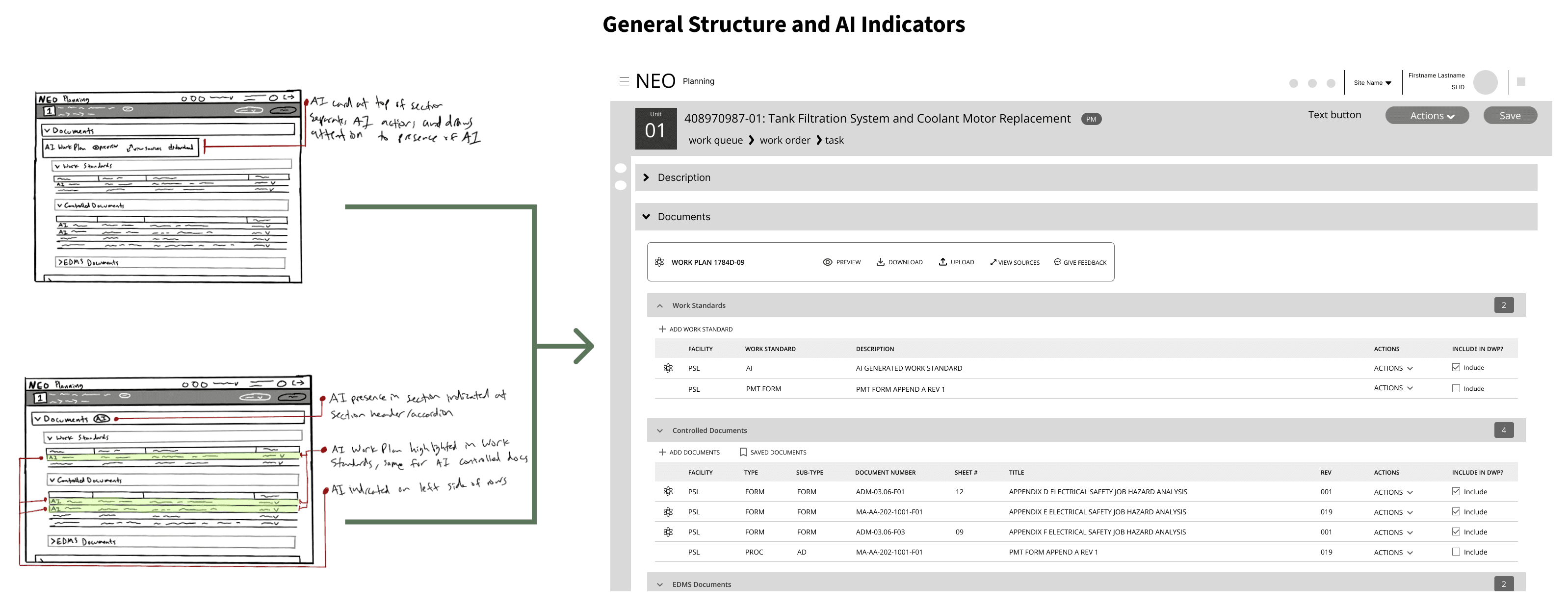
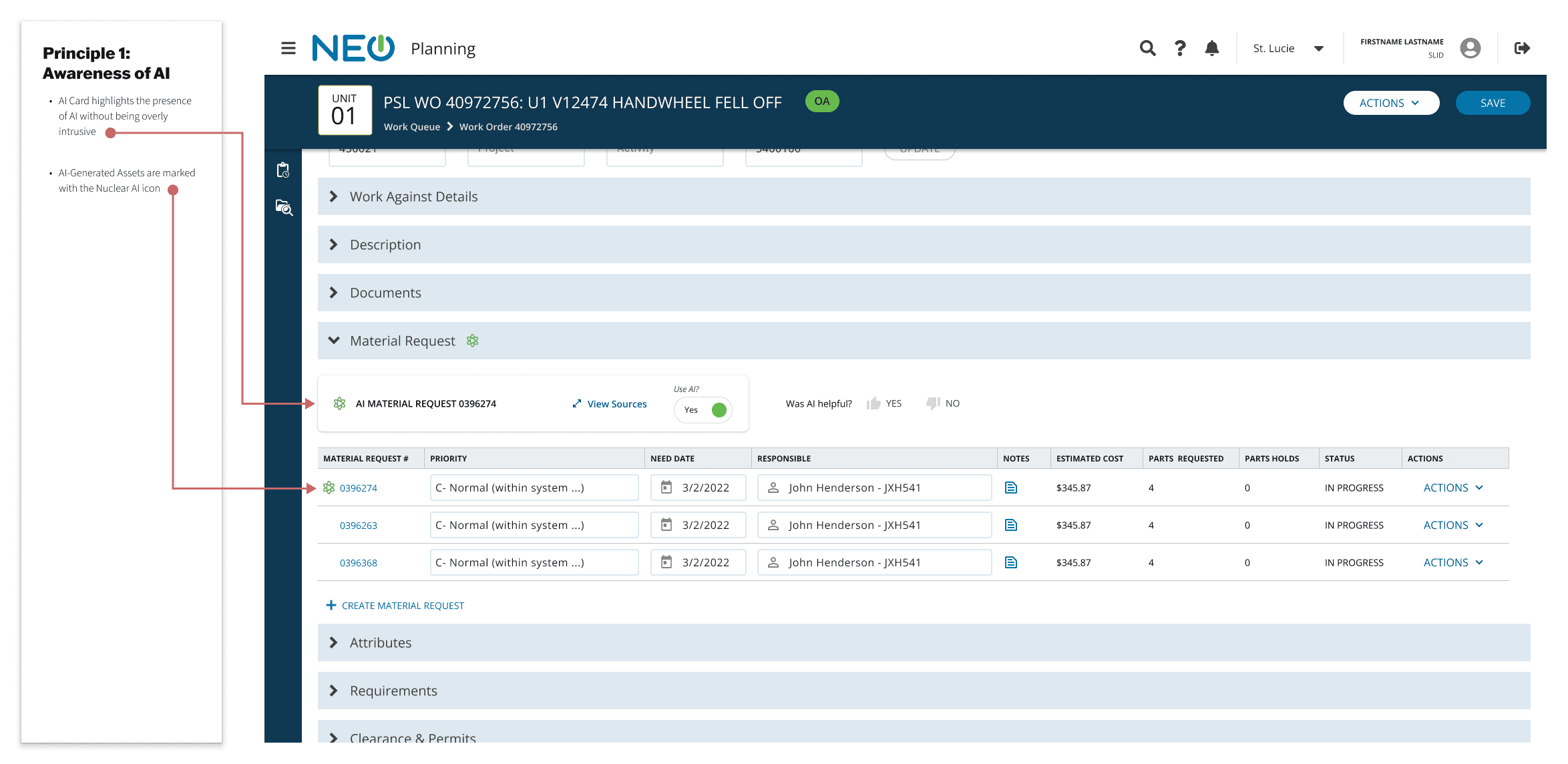
Principle 1: AI Awareness

  • The UI Pattern:

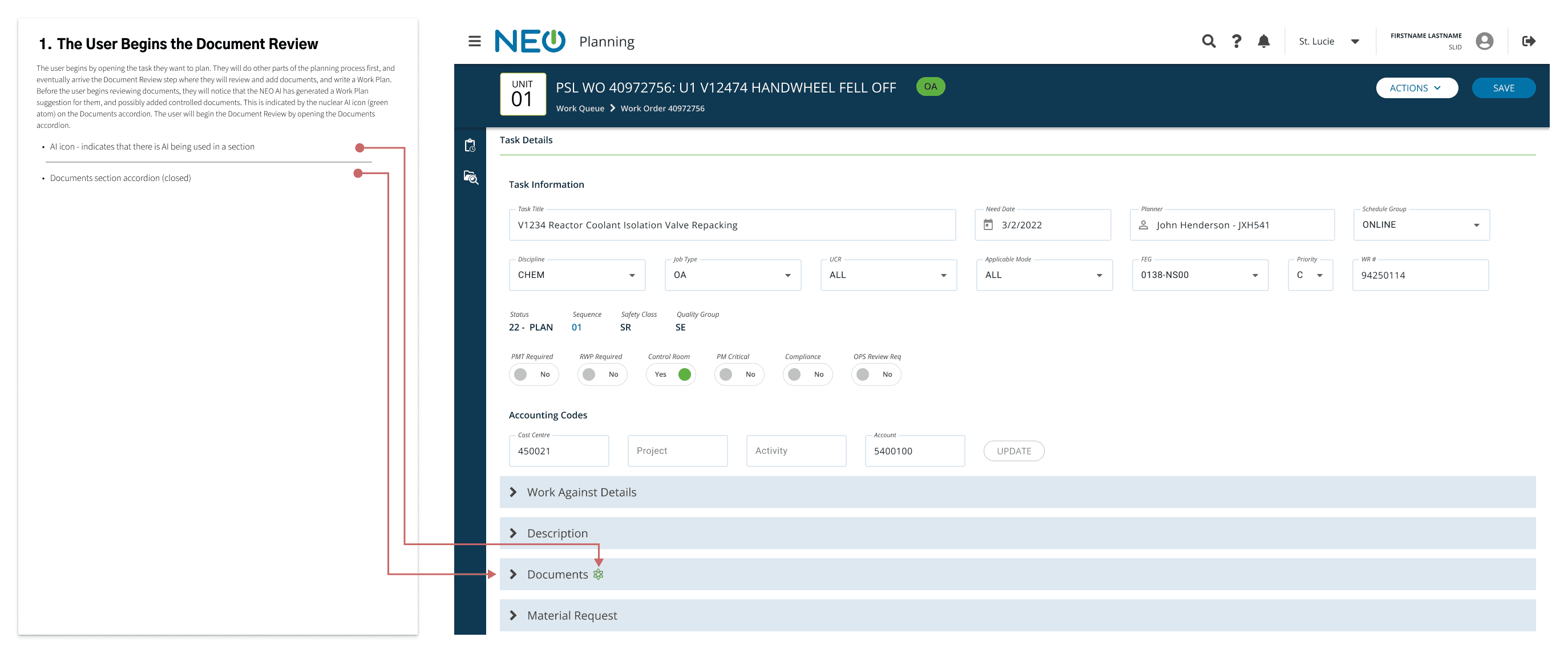
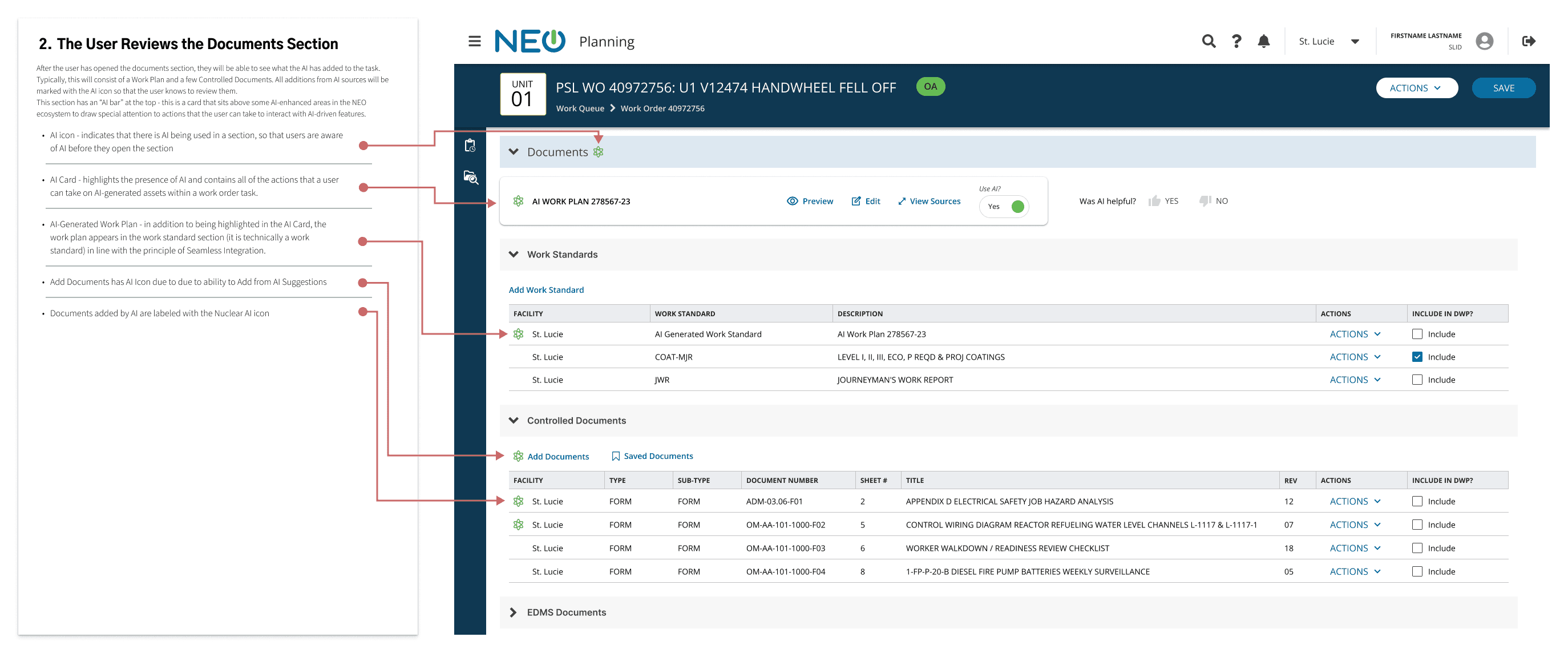
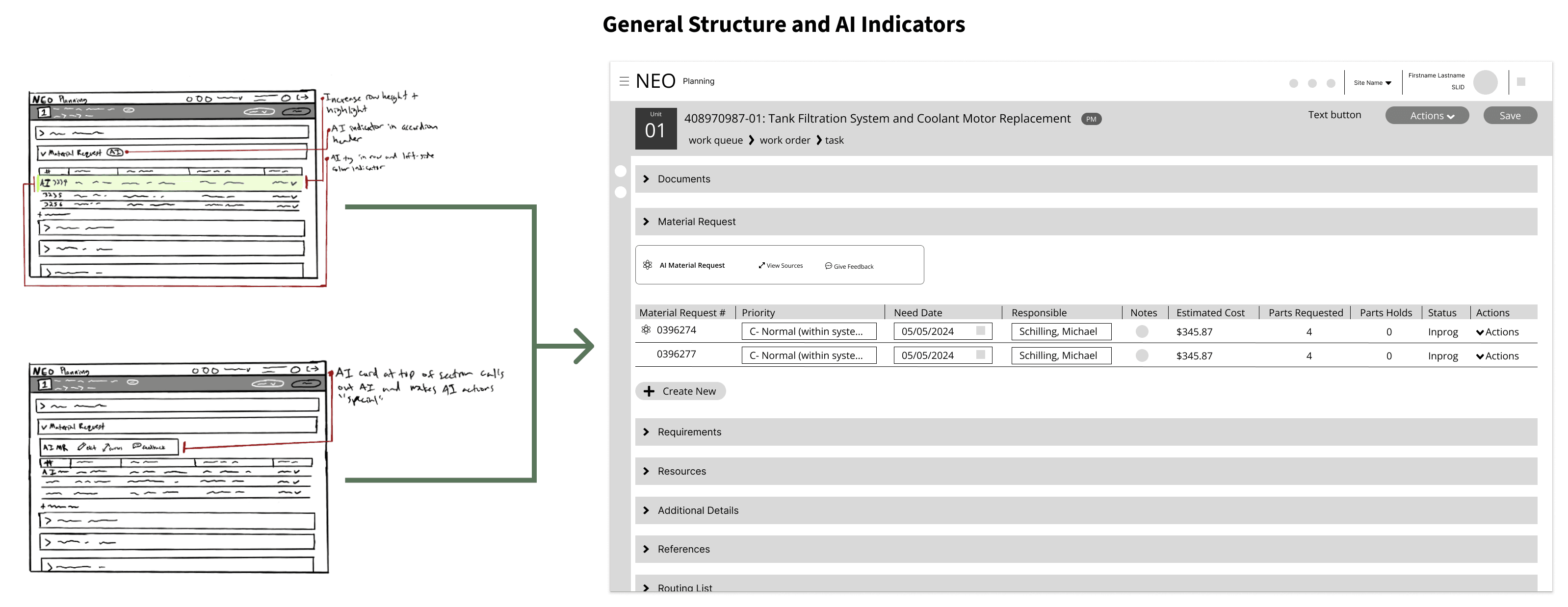
We implemented a distinct "AI Card" at the top of every AI-augmented section.

  • Key Detail:

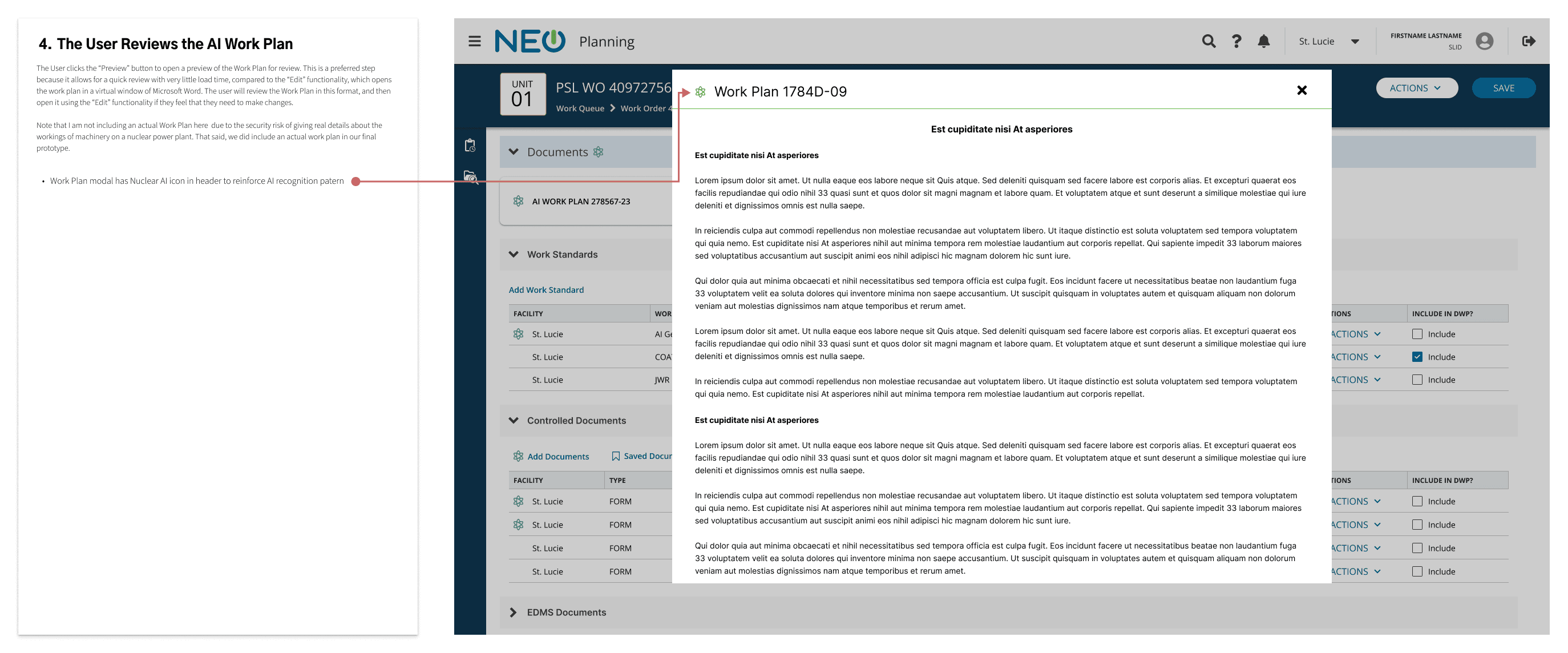
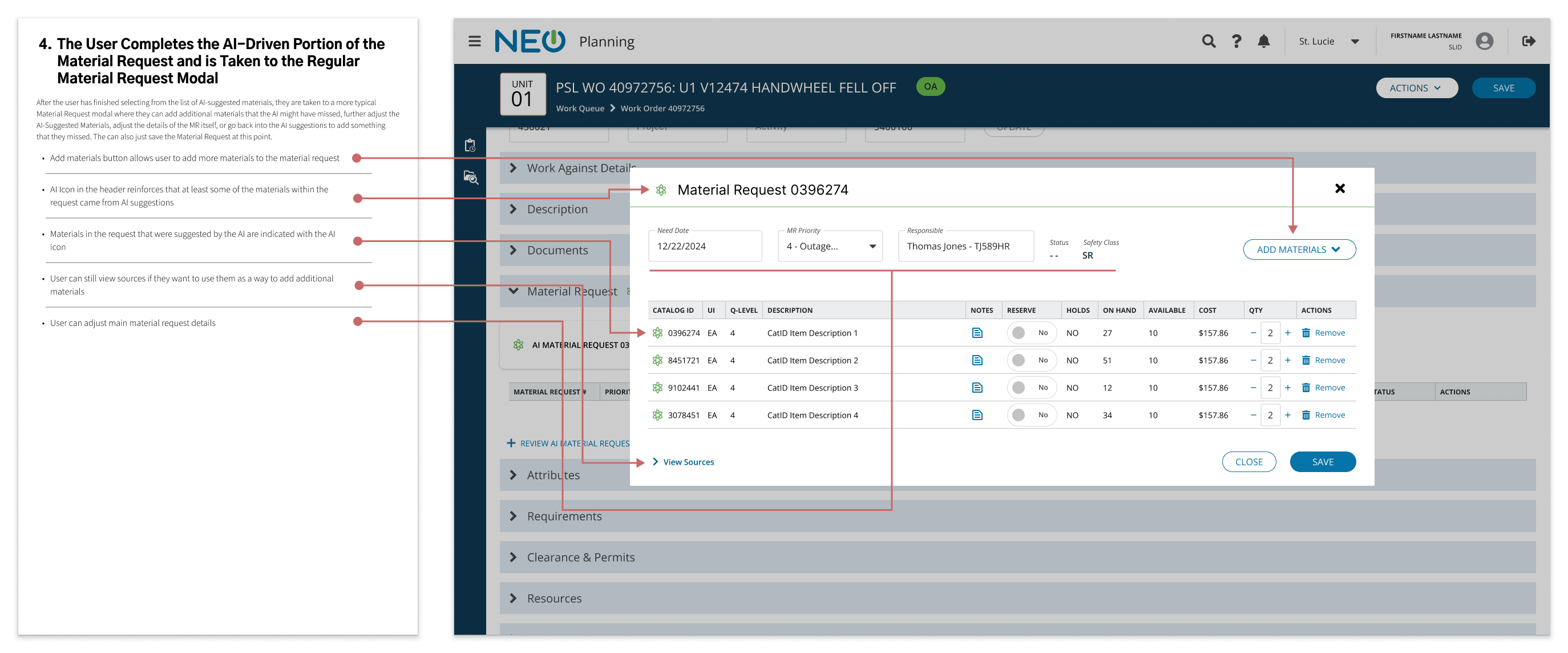
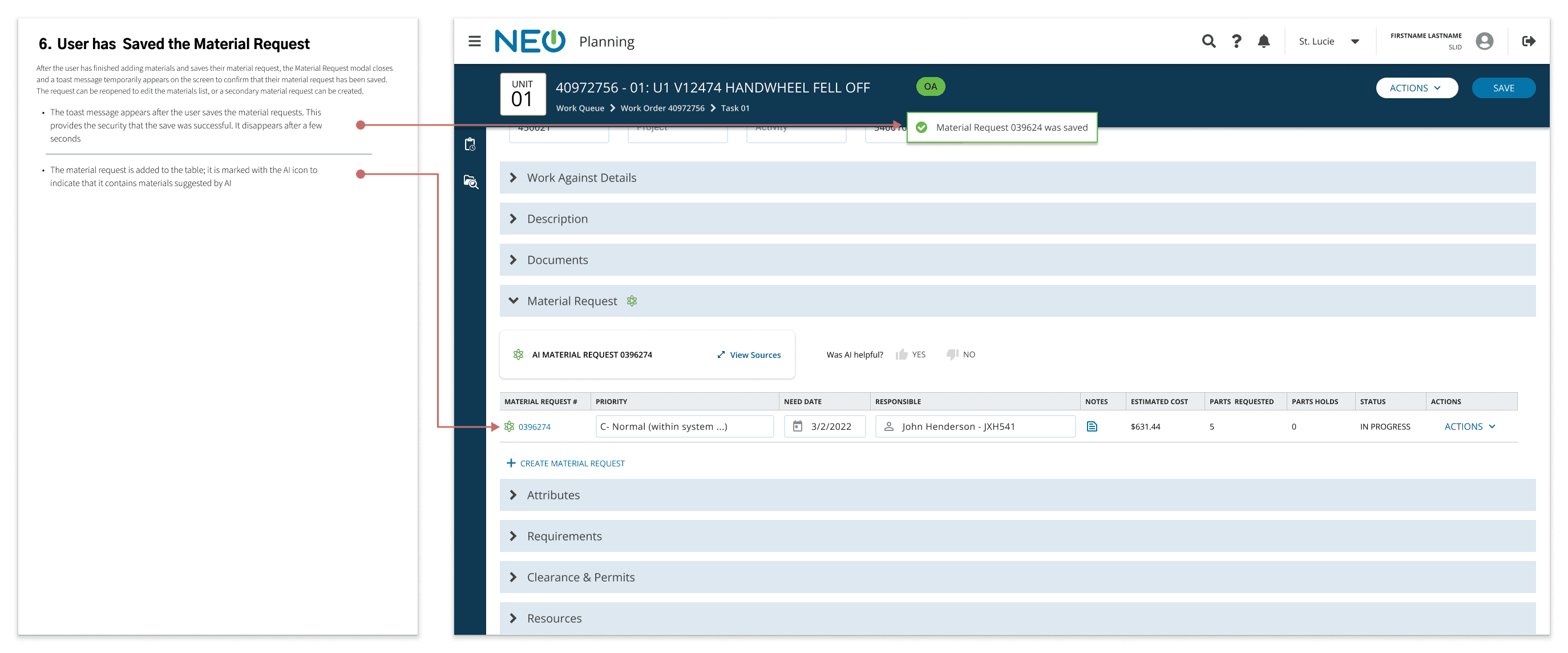
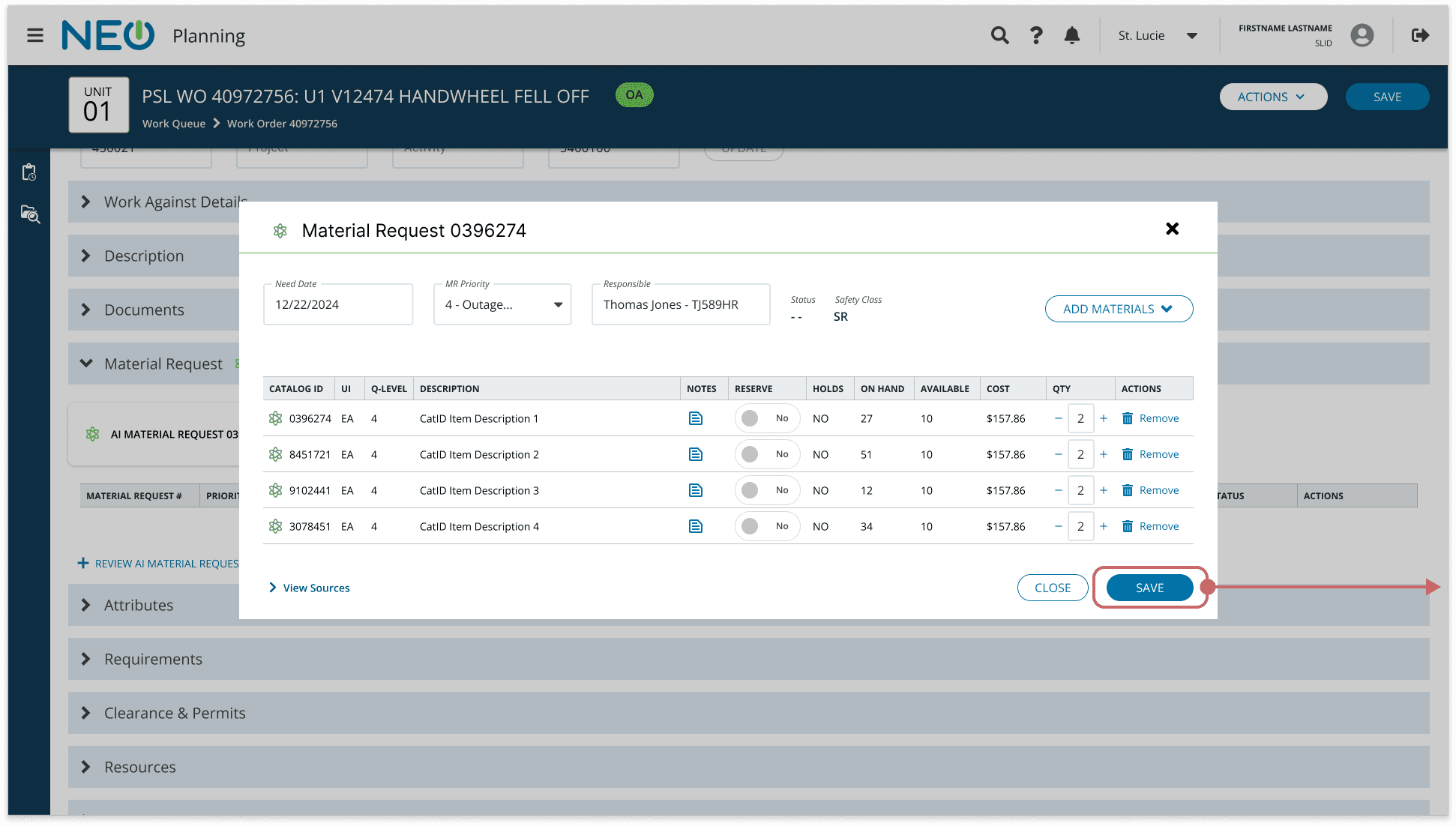
Every specific line item generated by the model (materials, documents) was marked with a unique Atom Icon, ensuring users could scan a list and immediately distinguish between human-entered data and AI suggestions.
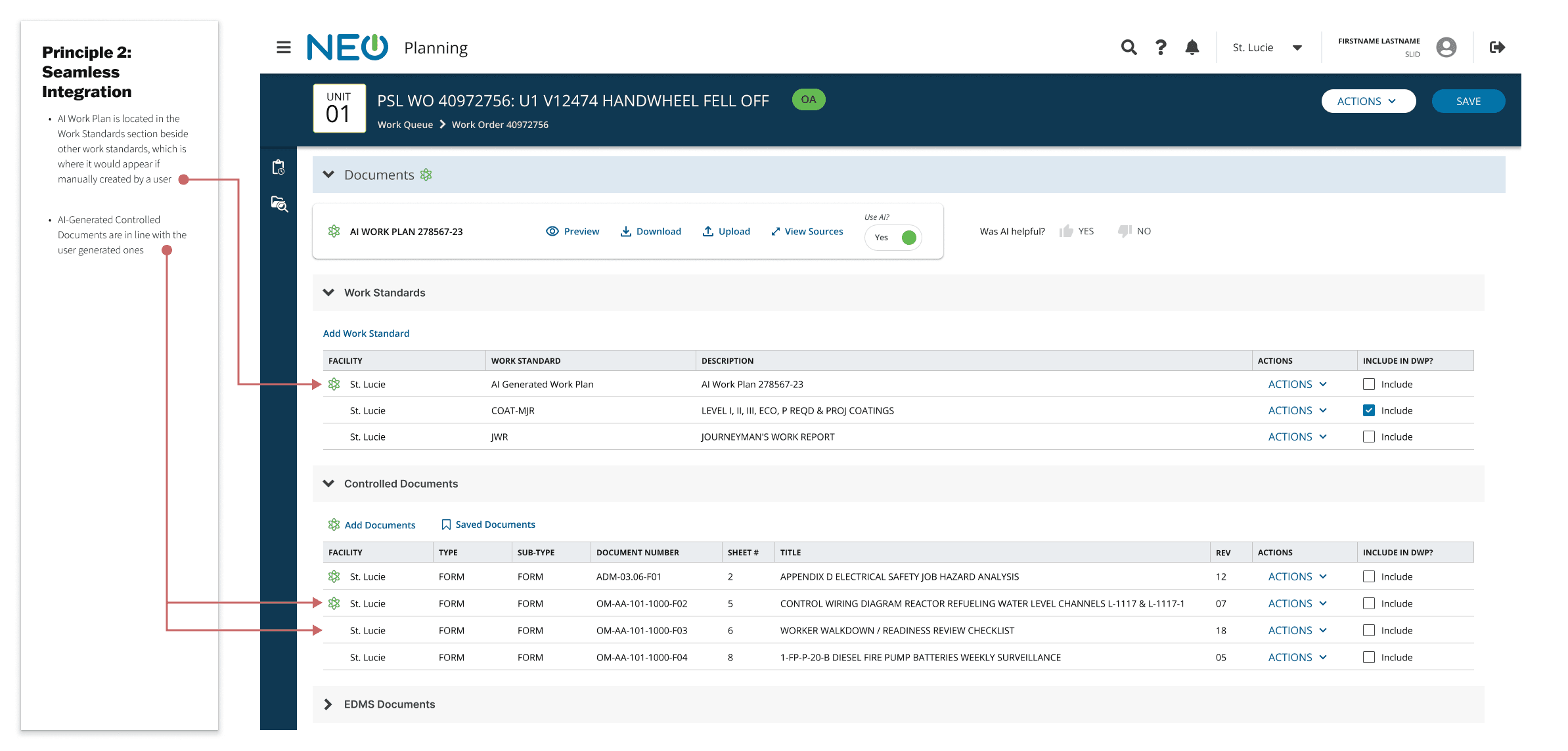
Principle 2: Seamless Integration

  • The UI Pattern:

Inline Injection.

  • Key Detail:

AI-generated materials appeared directly in the standard "Material Request" and “Documents” sections. This meant users didn't have to learn a new tool; they just worked in their familiar views, now pre-populated by the AI.
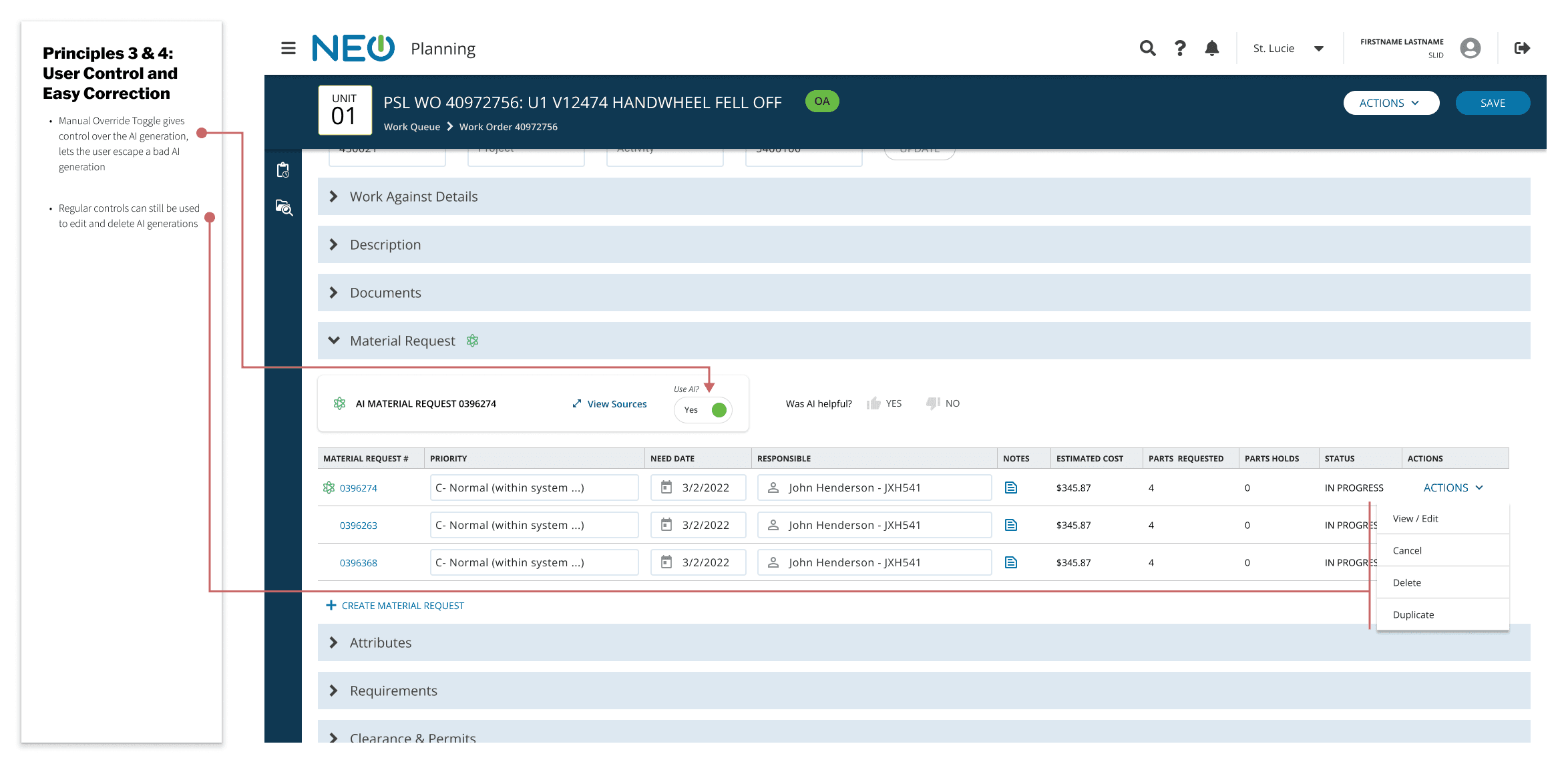
Principles 3 & 4: User Control and Easy Correction

  • The UI Pattern:

The Manual Override & Standard Editing.

  • Key Detail:

Users maintained ultimate authority. If the AI was unhelpful, the Manual Override Toggle allowed them to disable it entirely for that section. For smaller corrections, users could edit AI generations using the exact same tools used for manual entry.
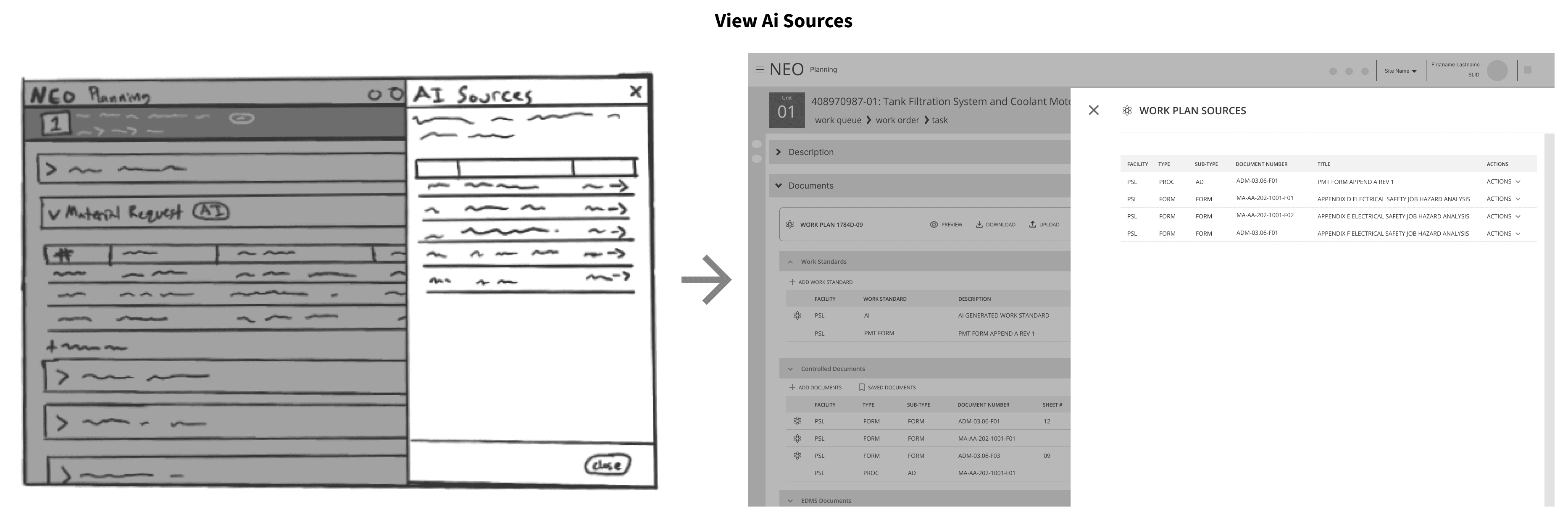
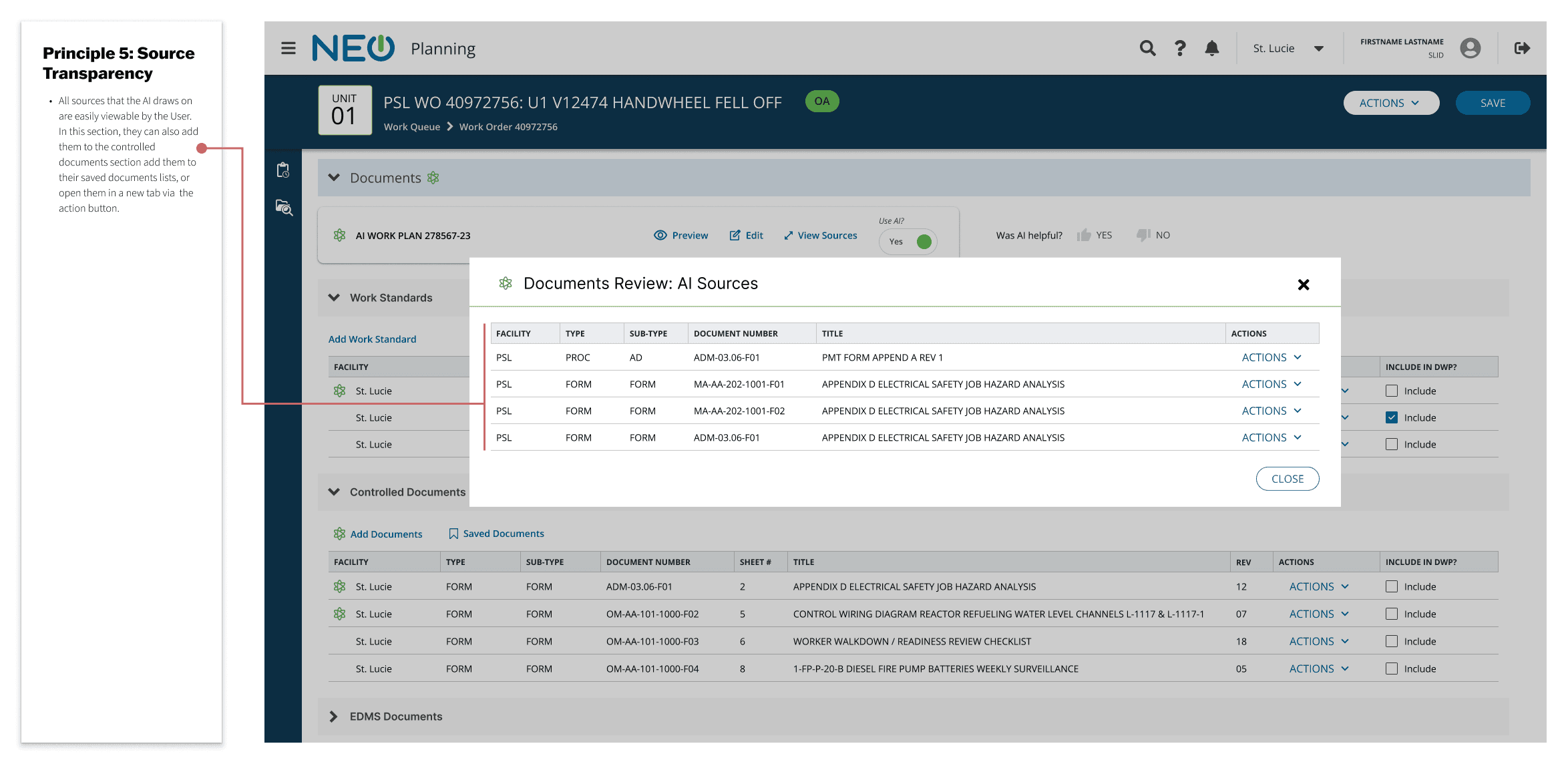
Principle 5: Source Transparency

  • The UI Pattern:

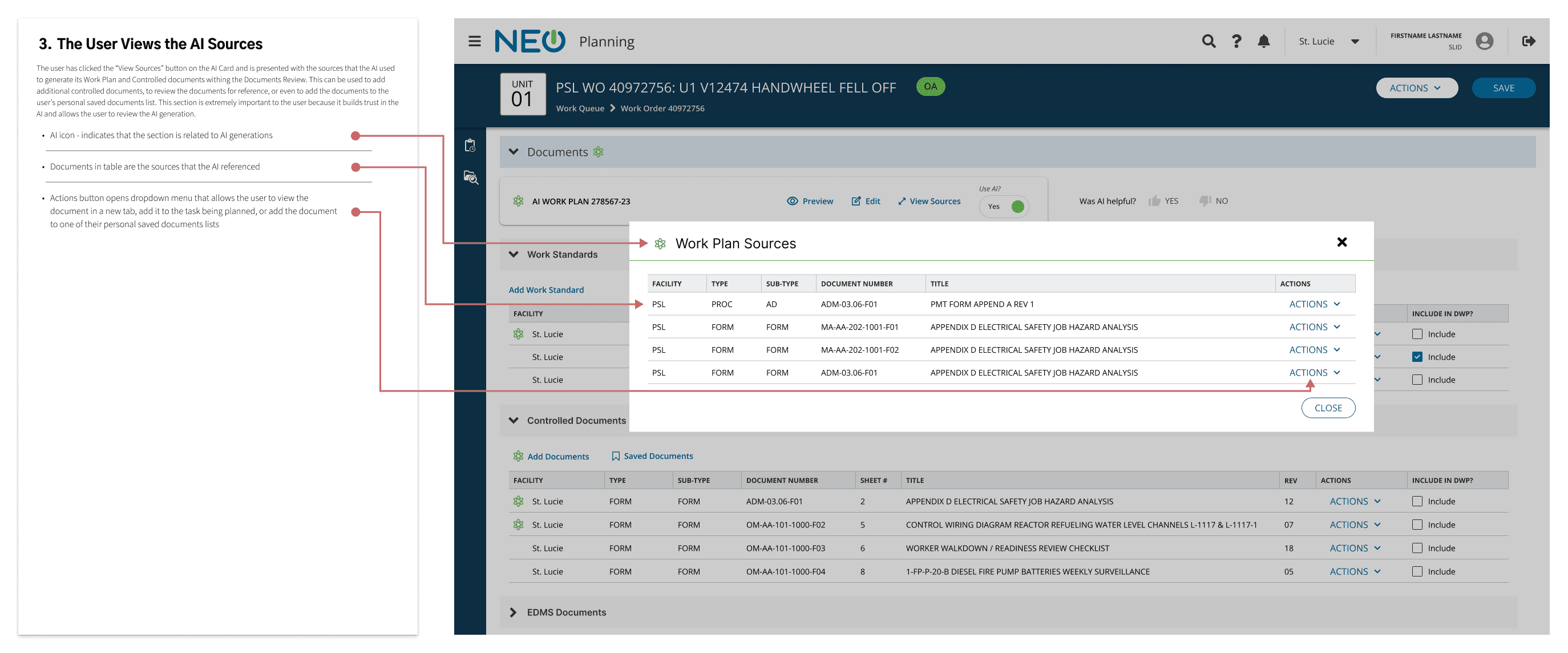
We implemented a distinct "AI Card" at the top of every AI-augmented section.

  • Key Detail:

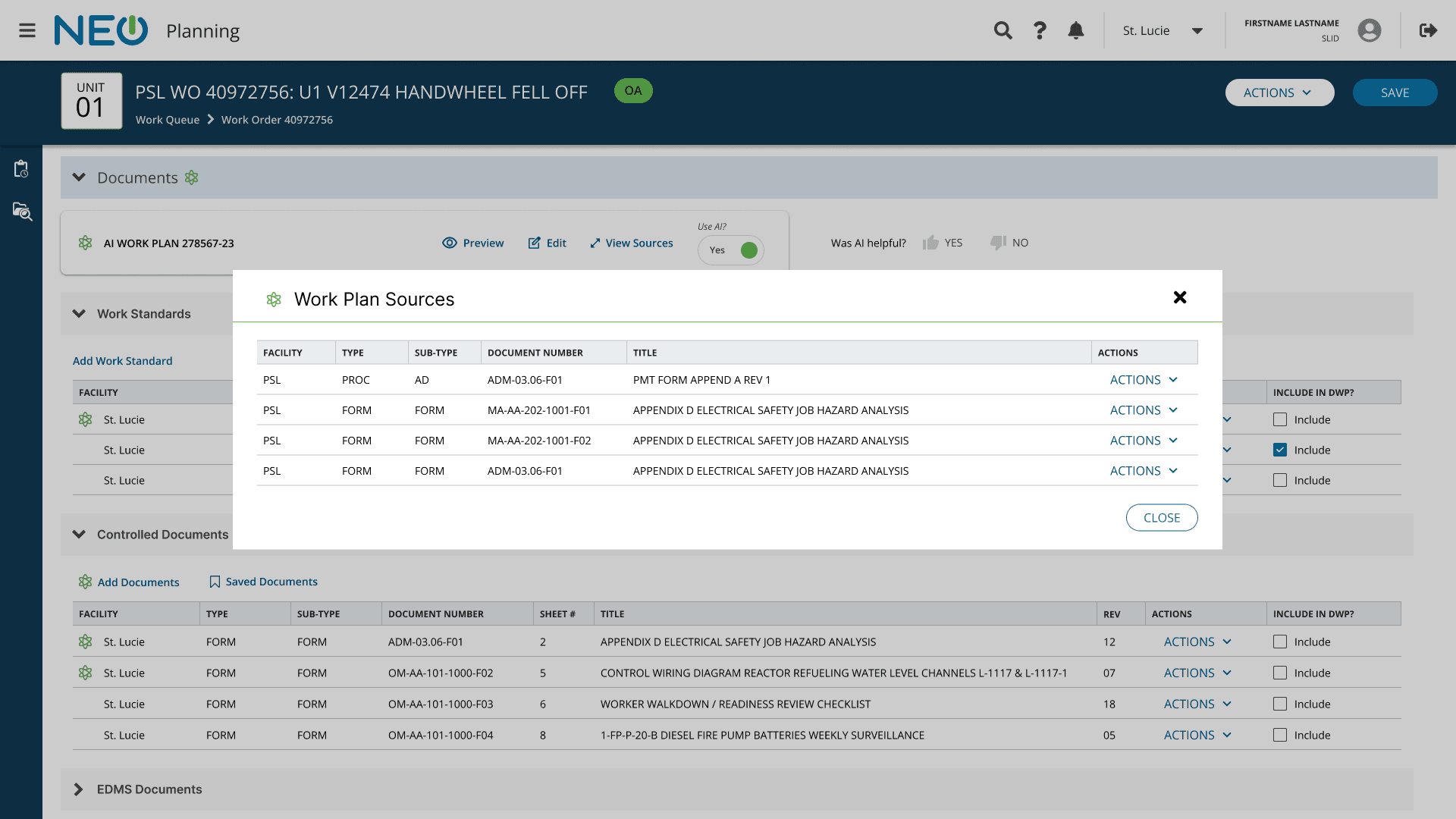
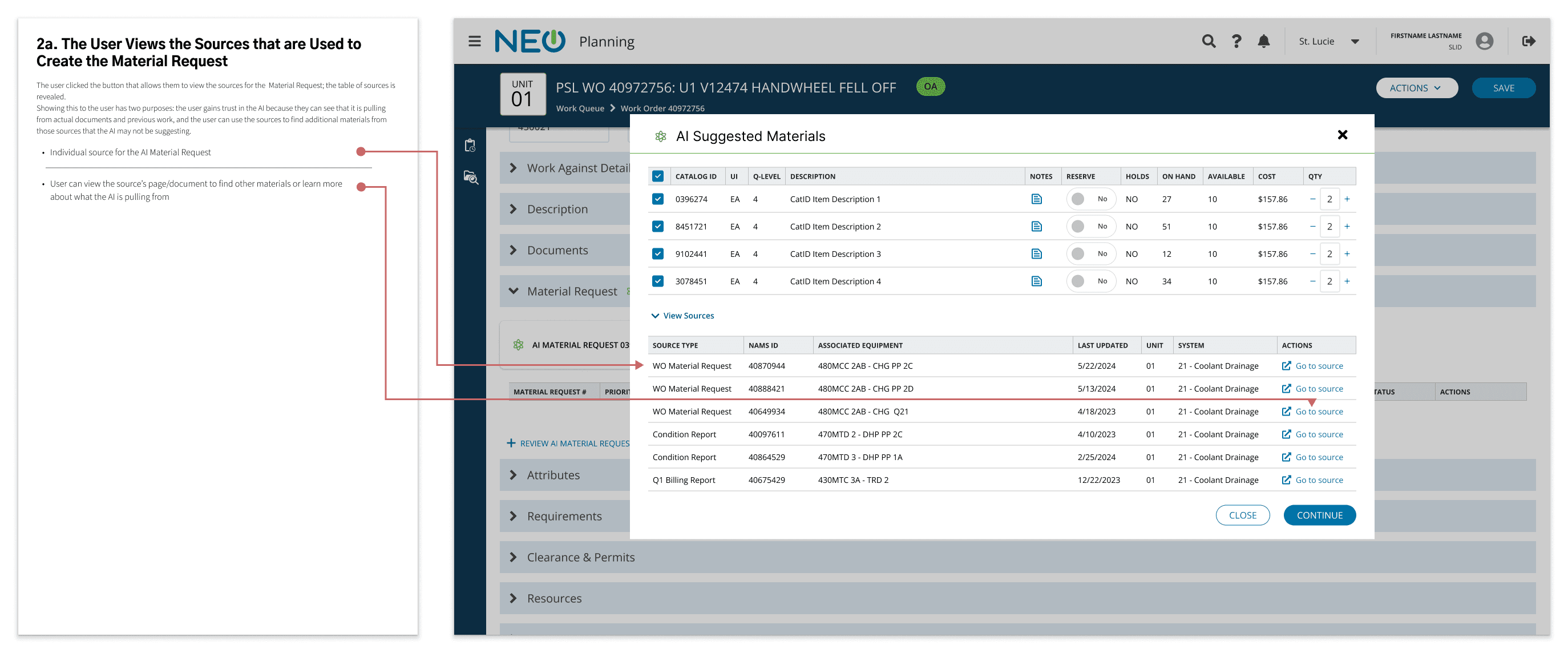
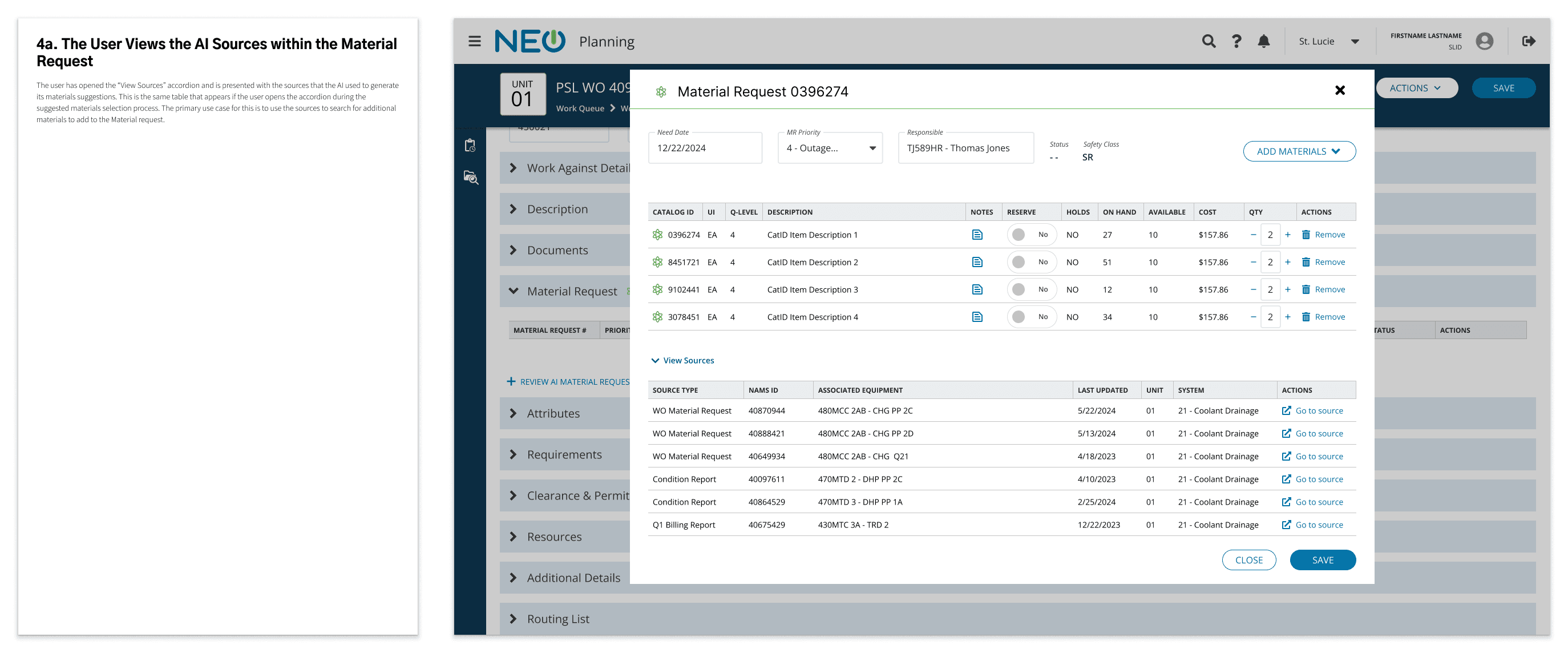
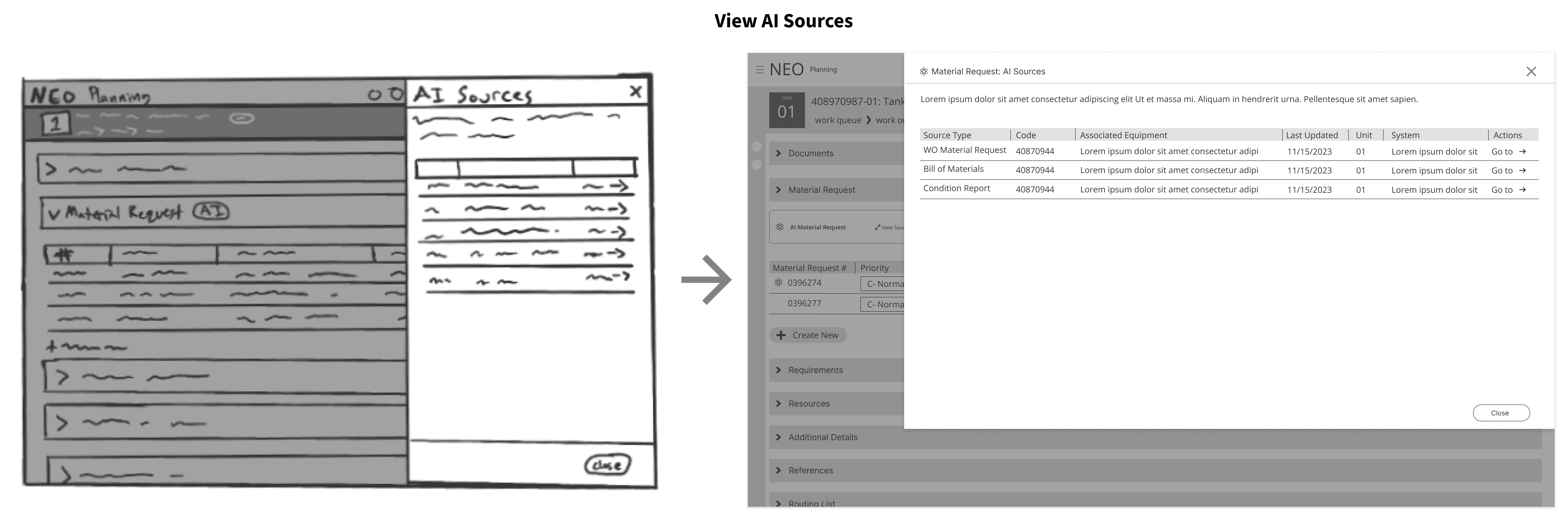
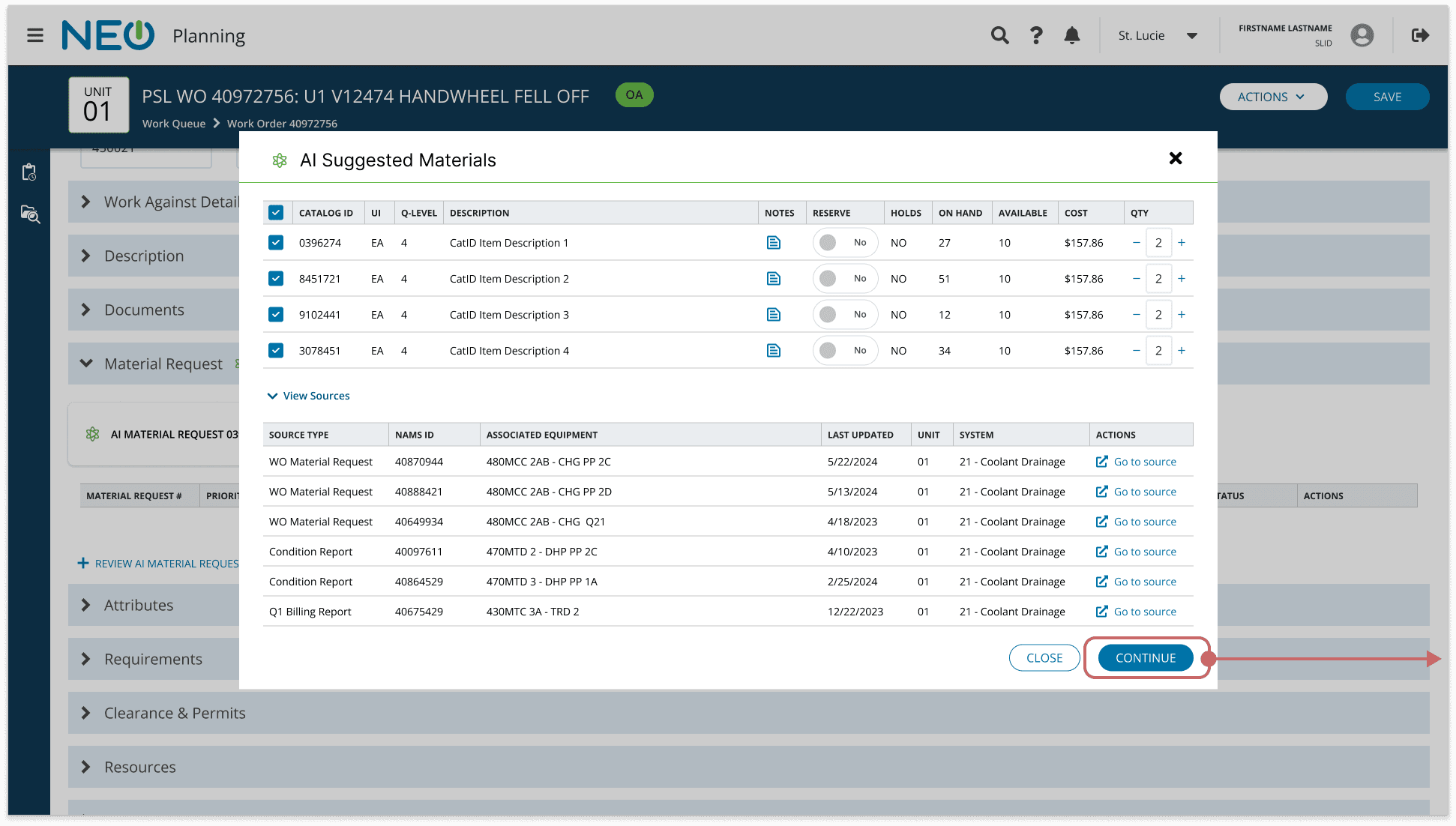
We didn't ask users to trust a "Black Box." Clicking "View Sources" on the AI Card opened a pop-up modal listing every technical document and past work order the AI referenced. This turned the tool into an engine for discovery, helping planners find documents and materials they might have missed otherwise.
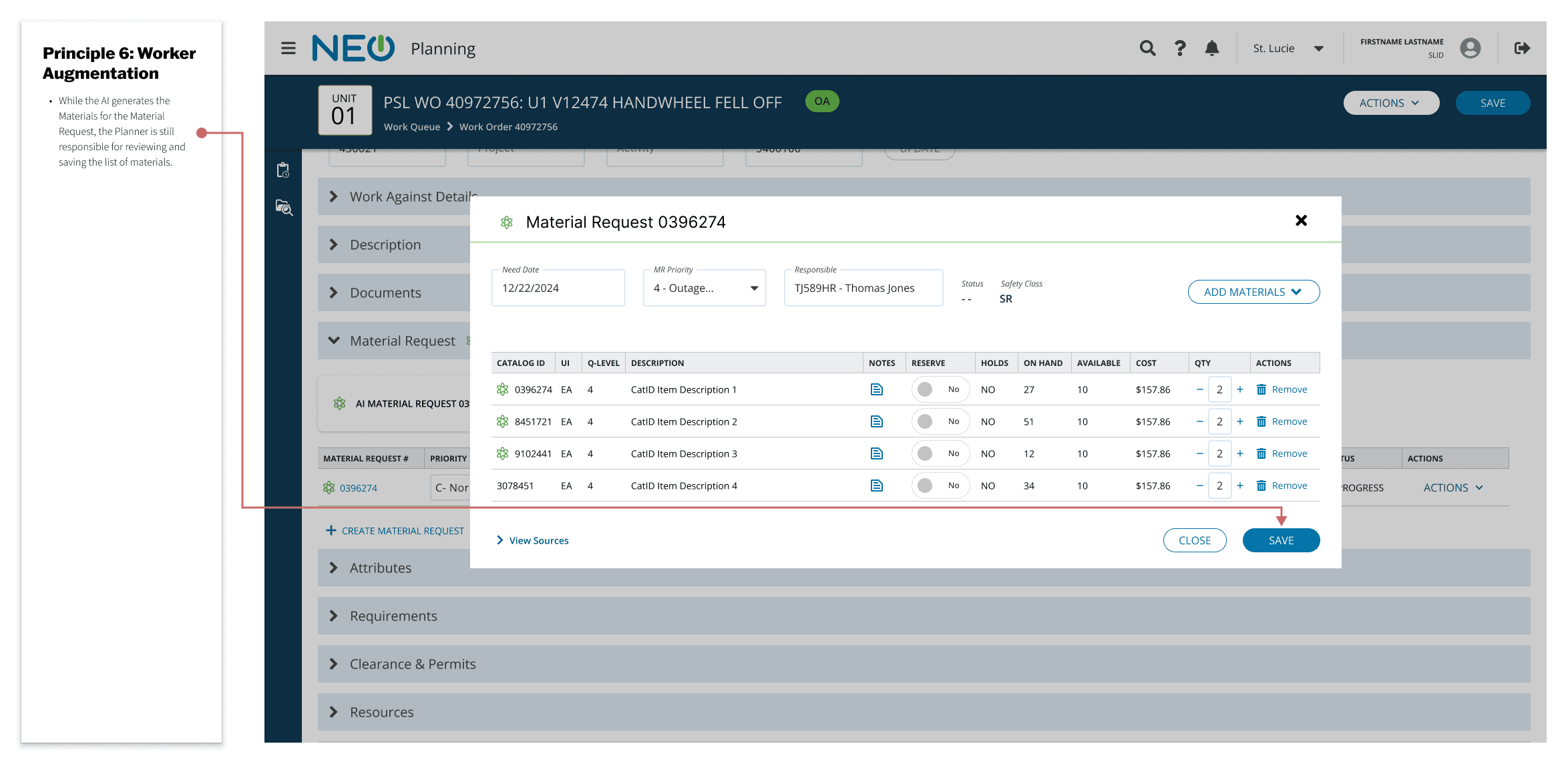
Principle 6: Worker Augmentation

  • The UI Pattern:

The "Reviewer" Workflow.

  • Key Detail:

The design explicitly positioned the Planner as the decision-maker. The AI provided the draft, but the Planner provided the stamp of approval.
Status: Ready for Handoff... Almost.

This prototype passed the business stakeholder review with flying colors and was technically ready for developer handoff. However, a timeline shift from the engineering team - specifically regarding the ingestion of vendor technical manuals - opened an unexpected window of time. Rather than letting the designs sit, we utilized this delay to conduct one final round of validation.

Validation: The Efficiency Test

An unexpected delay in the engineering schedule regarding vendor manual ingestion provided a strategic opening. Rather than letting the designs sit, we utilized this window to conduct a second, more rigorous round of usability testing.

While the first round tested for comprehension (Do they understand the AI?), this round tested for efficiency (Is the AI actually faster?).

Methodology: Real World Simulation

To ensure the data was valid, we couldn't use dummy text. We collaborated with Planning Management and a Senior Planner (who was not a test participant) to identify a historical work order task that was applicable to all disciplines. We slightly modified the details of this approved task to prevent recognition from memory, creating a realistic "Control" scenario.

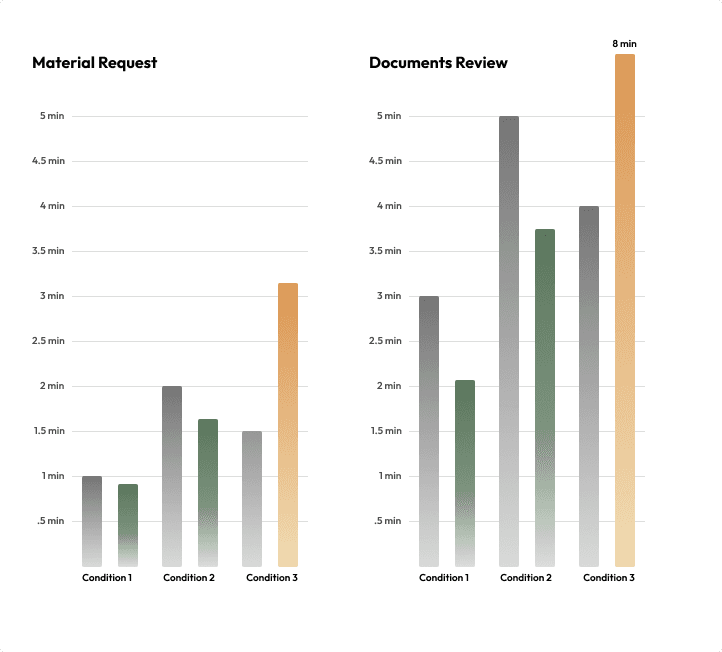
We tested users against three distinct conditions to measure Time-on-Task:

Condition 1: The "Happy Path" (AI is Perfect)

  • Scenario:

The AI generation is 100% correct. The user only needs to verify and approve.

  • Goal:

Material Request completed in < 1 min; Documents Review completed in < 3 min.

  • Result:

PASSED. Every single user completed the reviews under the time limit. This confirmed that when the AI works, the efficiency gain is massive.

Condition 2: The "Human in the Loop" (AI Needs Edits)

  • Scenario:

The AI is mostly right but includes specific errors (e.g., one missing material, one wrong header, one missing procedural step).

  • Goal:

Material Request < 2 min; Documents Review < 5 min.

  • Result:

PASSED. Despite a few outliers who took an extra minute, the vast majority of users easily identified and fixed the errors well within the time limits. This proved that the editing tools were intuitive enough to maintain efficiency even when the AI wasn't perfect.

Condition 3: The "Fail State" (AI Hallucination)

  • Scenario:

The AI generation is unusable. The user must recognize the failure and use the "Manual Override" toggle to revert to manual planning.

  • Goal:

Material Request < 1.5 min; Documents Review < 4 min.

  • Result:

FAILED (with a positive twist). Users took nearly twice as long as hypothesized to turn off the AI.

The "Performative Diligence" Insight

Initially, the failure of Condition 3 looked concerning. However, upon reviewing the footage, we discovered a psychological driver behind the delay. Users were engaging in "performative diligence". Because they knew they were being recorded, and because they fiercely wanted to keep the "Manual Override" feature, they spent extra time exhaustively proving the AI was wrong before disabling it. They wanted to demonstrate to management that they weren't abusing the feature.

We presented this finding to stakeholders, arguing that in a safety-critical environment, users spending extra time verifying a failure is actually a positive outcome. Management agreed, and the designs were approved for final handoff.

Post-Launch Iteration: The "Survivorship Bias" Problem

A few months after launch, the AI engineering team hit an unexpected plateau. While the model was performing well, its rate of improvement had stalled. We discovered the culprit was a Survivorship Bias caused by our greatest trust-building feature: the Manual Override.

The Data Blind Spot

When the AI generated an extremely flawed Material Request (e.g., 7 wrong items, 3 right items that needed edits), users were simply using the manual override to wipe the slate clean.

  • The User Win:

Fast, frustration-free reset.

  • The Model Loss:

The LLM never learned which specific items were wrong from its bad generation. It only received data from "survivors" - the requests that were good enough to keep. We were effectively blinding the model to its own edge-case failures.

The Strategic Pivot

We realized that to break through this plateau, we needed to retire the "Manual Override" for Material Requests. This was a calculated risk: The feature that built our initial trust was now the bottleneck for future quality.

  • Note: This pivot was only possible because the AI's accuracy had improved significantly since launch. Users no longer needed the "safety chute" as often, making them open to a new workflow.

The Solution: From "Manual Override" to "Active Selection"

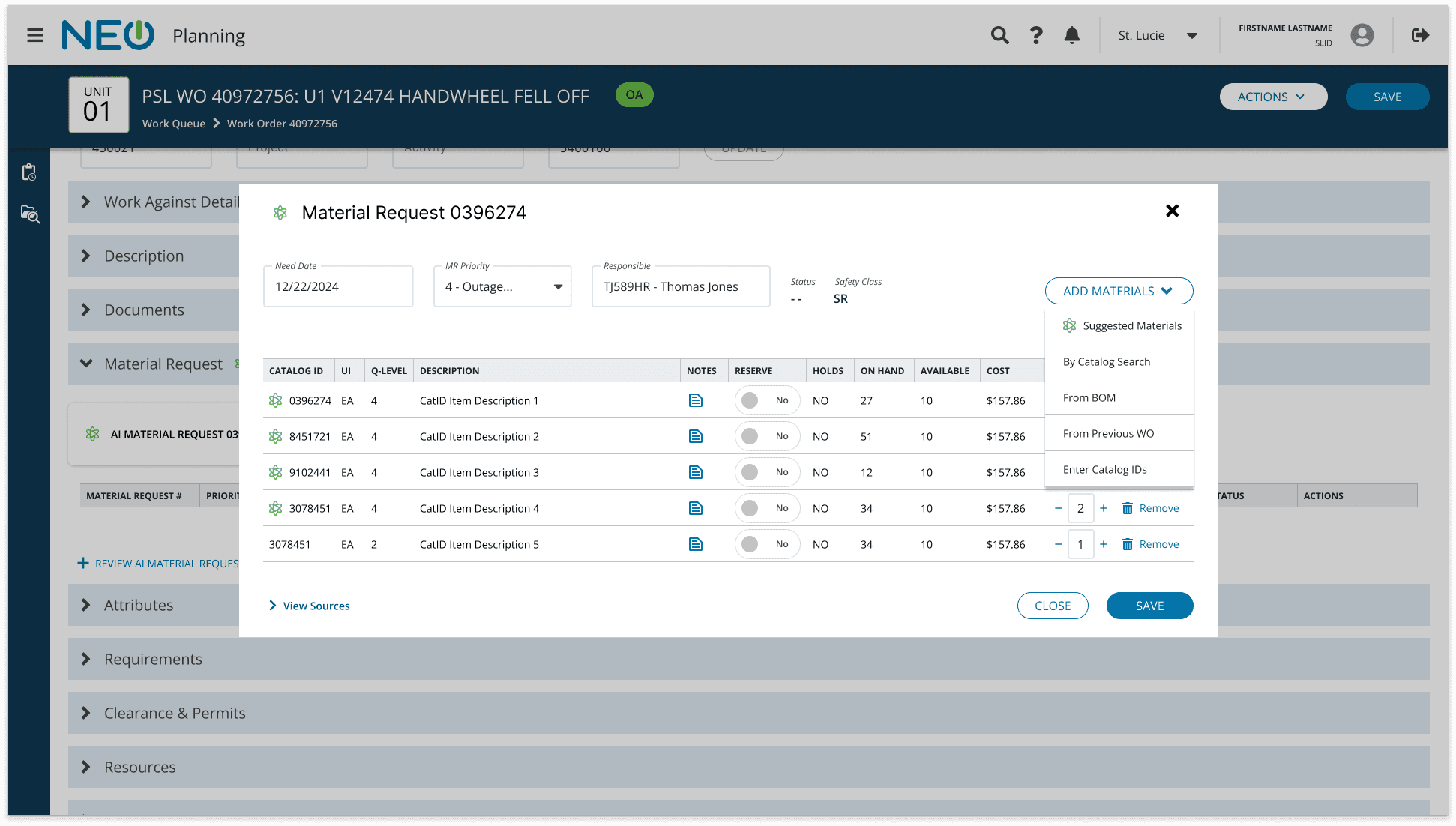
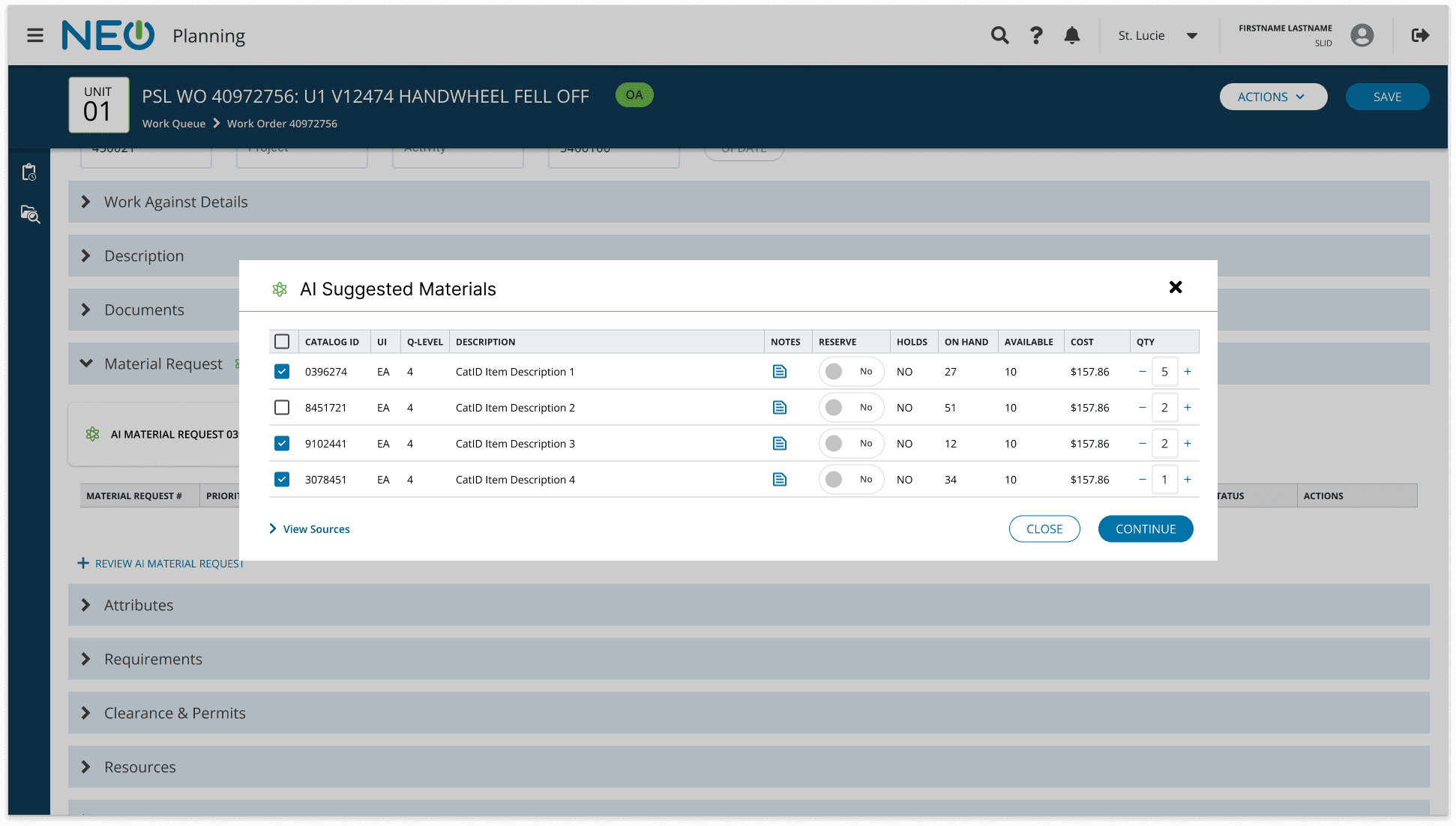
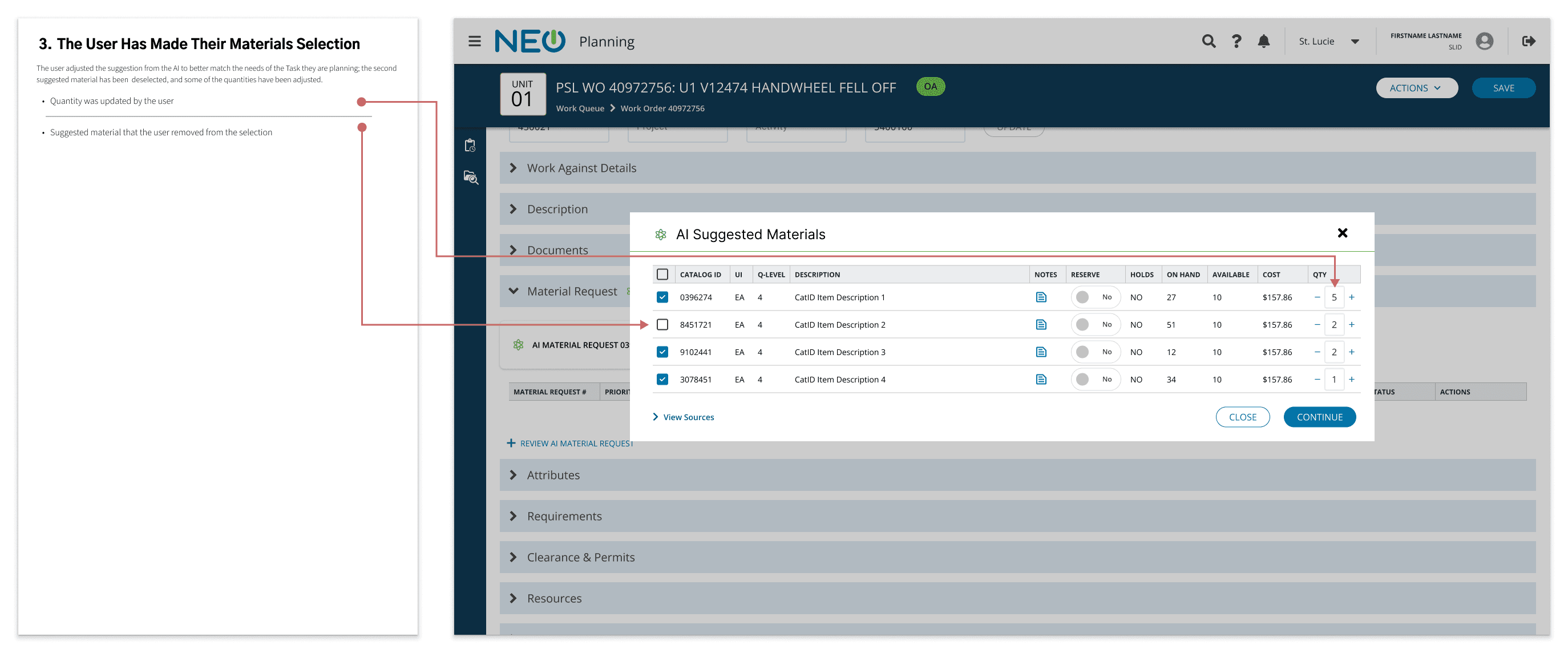
We redesigned the workflow to force granular interaction without increasing friction. Instead of generating a full request that users could reject in bulk, we shifted to an "Active Selection" model.

Trigger and Interaction

  • Old Flow (Pre-Fill):

The AI silently created a request. The user opened it and either fixed it or turned it off with the manual override.

  • The New Flow (Suggestion)

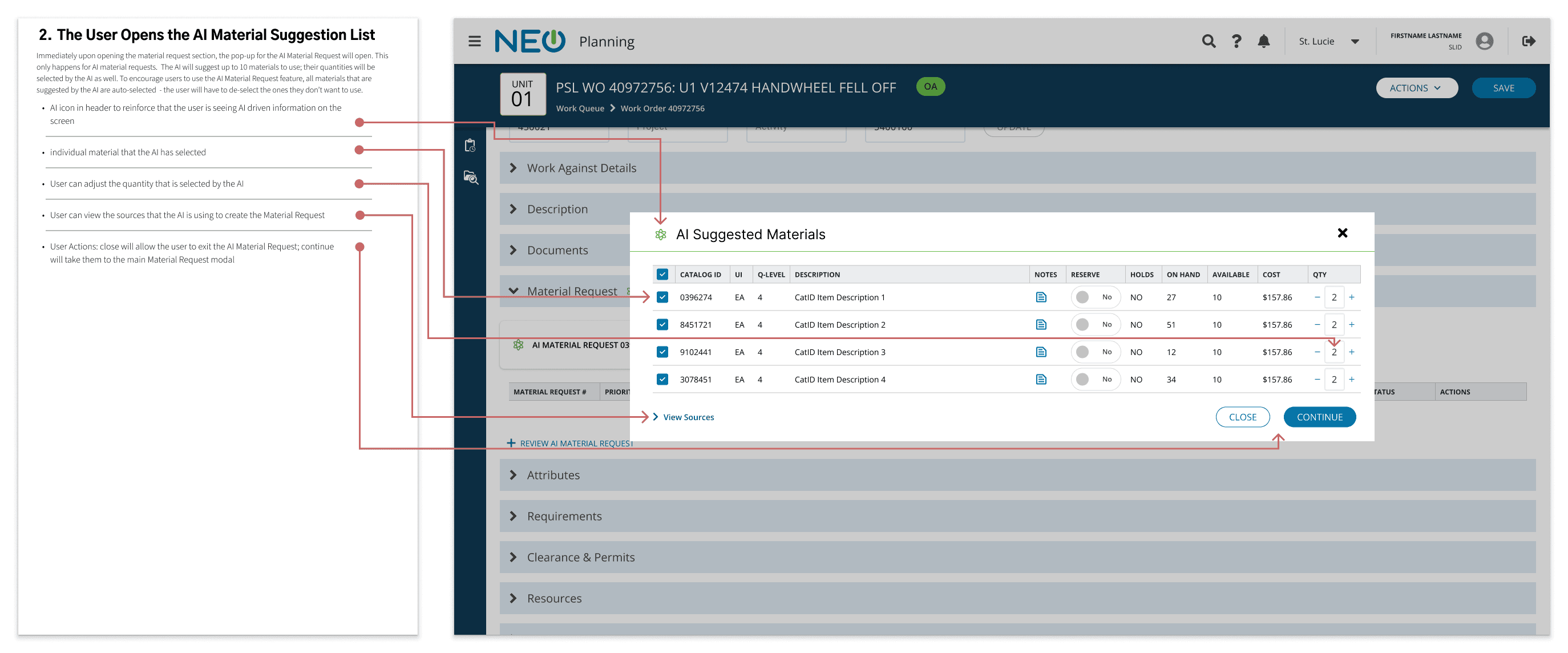
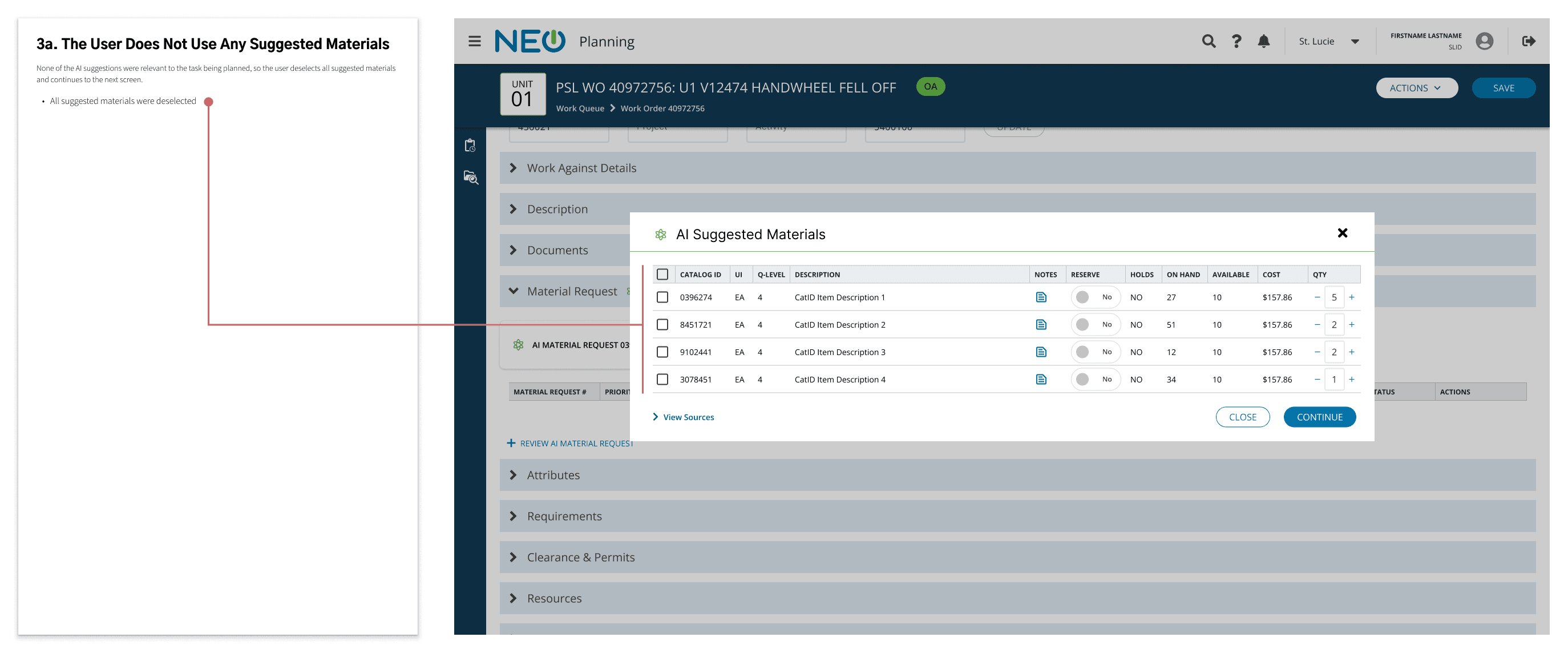
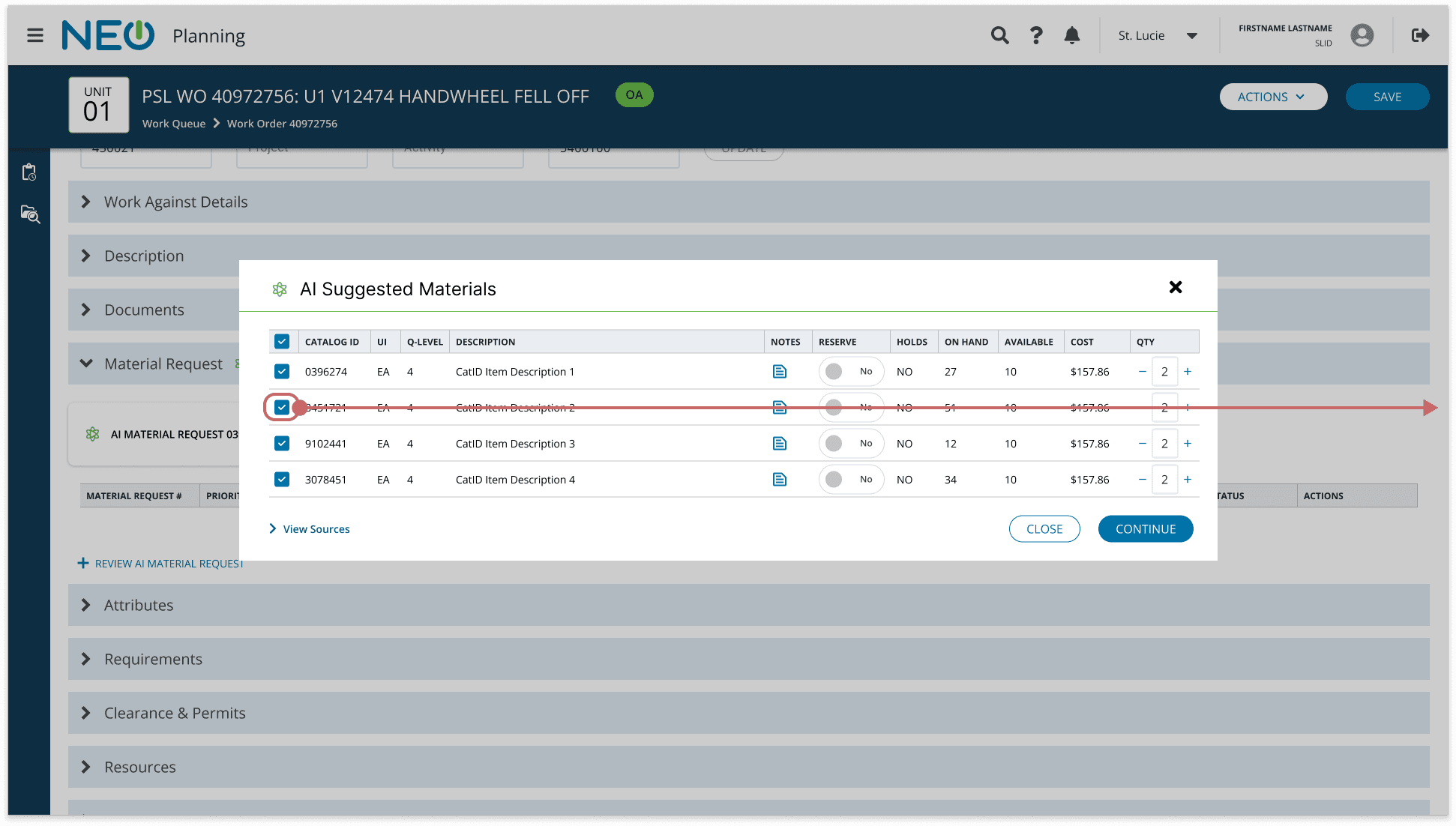
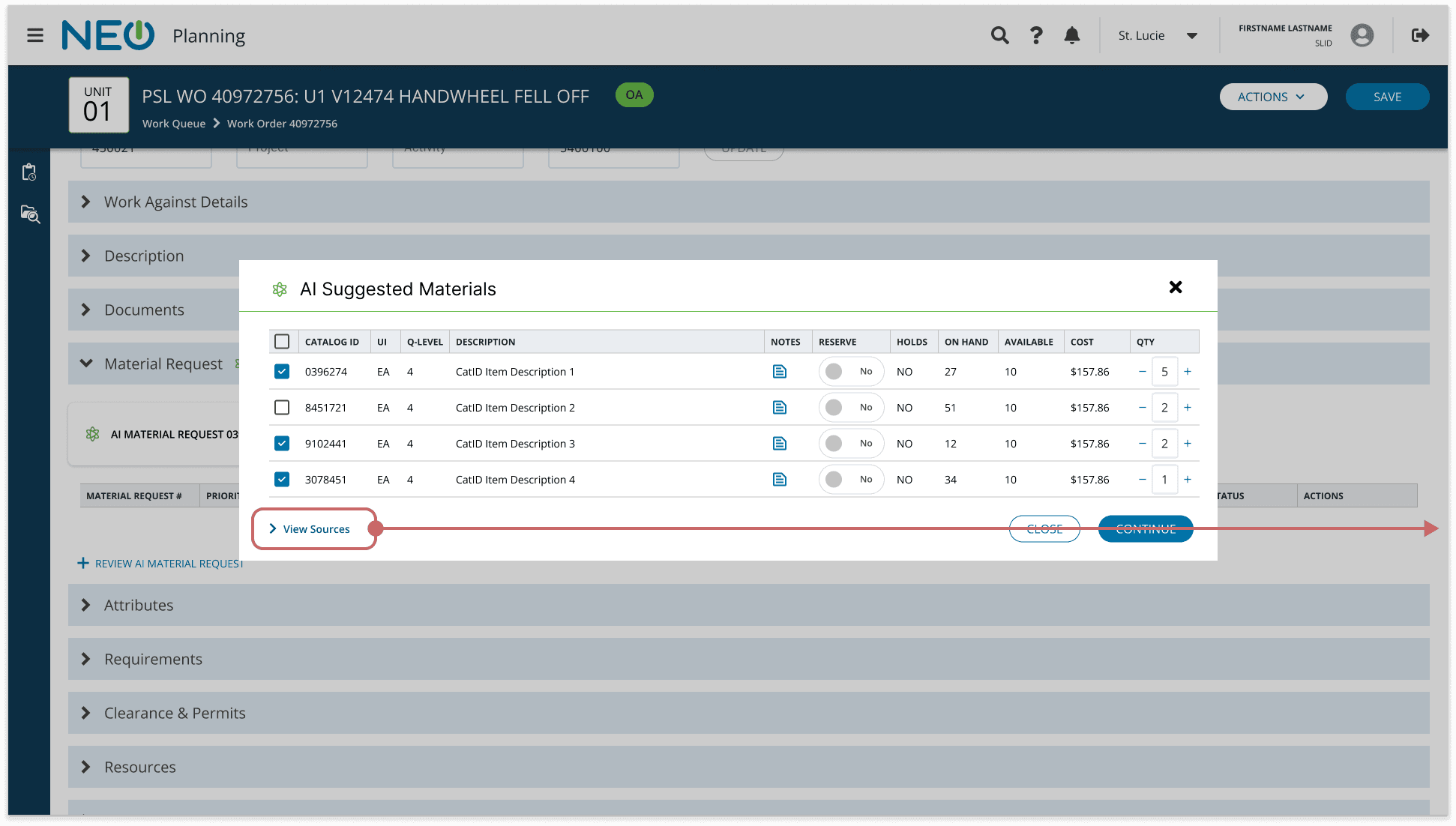
When entering the section, the user is immediately presented with a "Selection Modal" containing AI suggestions. All items are selected by default. Then, the user simply unchecks the bad items. This action sends precise, negative reinforcement data to the model for those specific parts, while validating the correct ones.
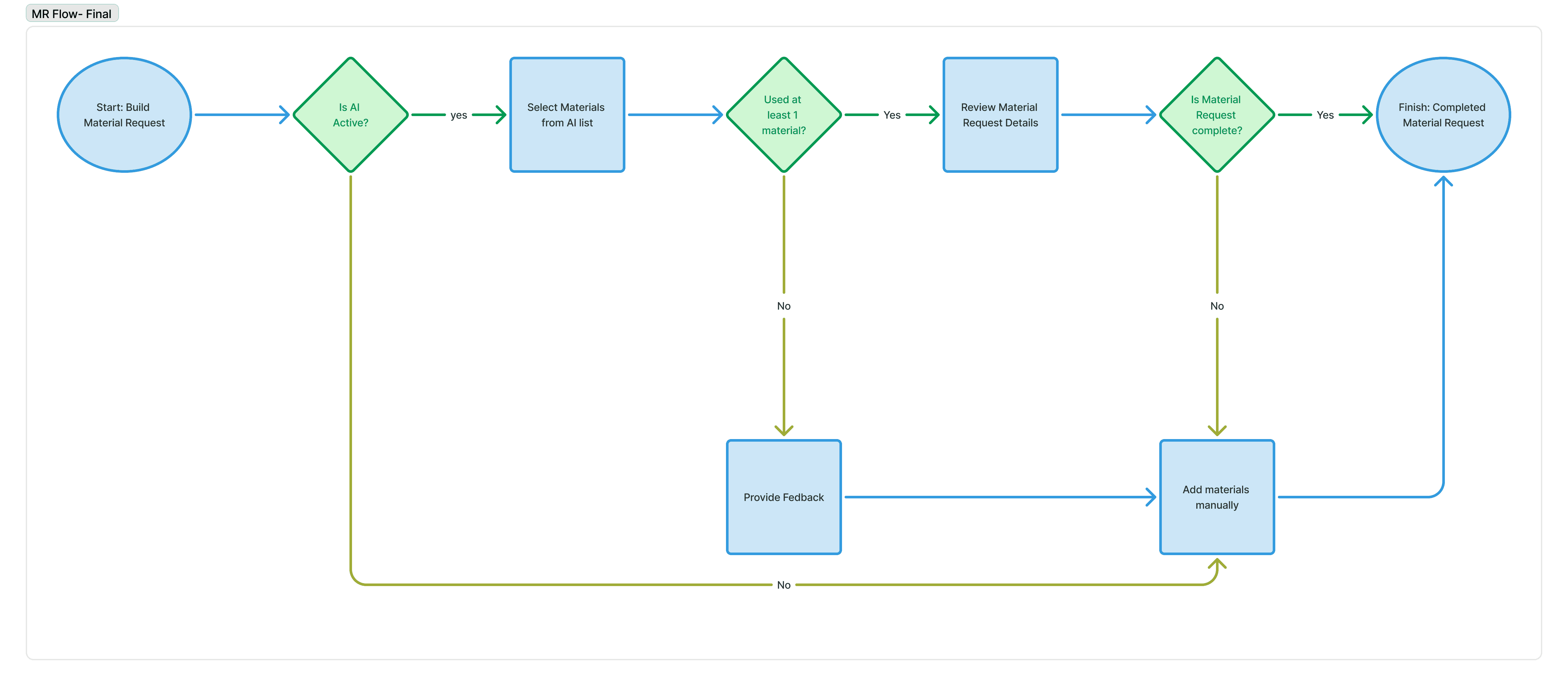
The "No Escape" Guardrail

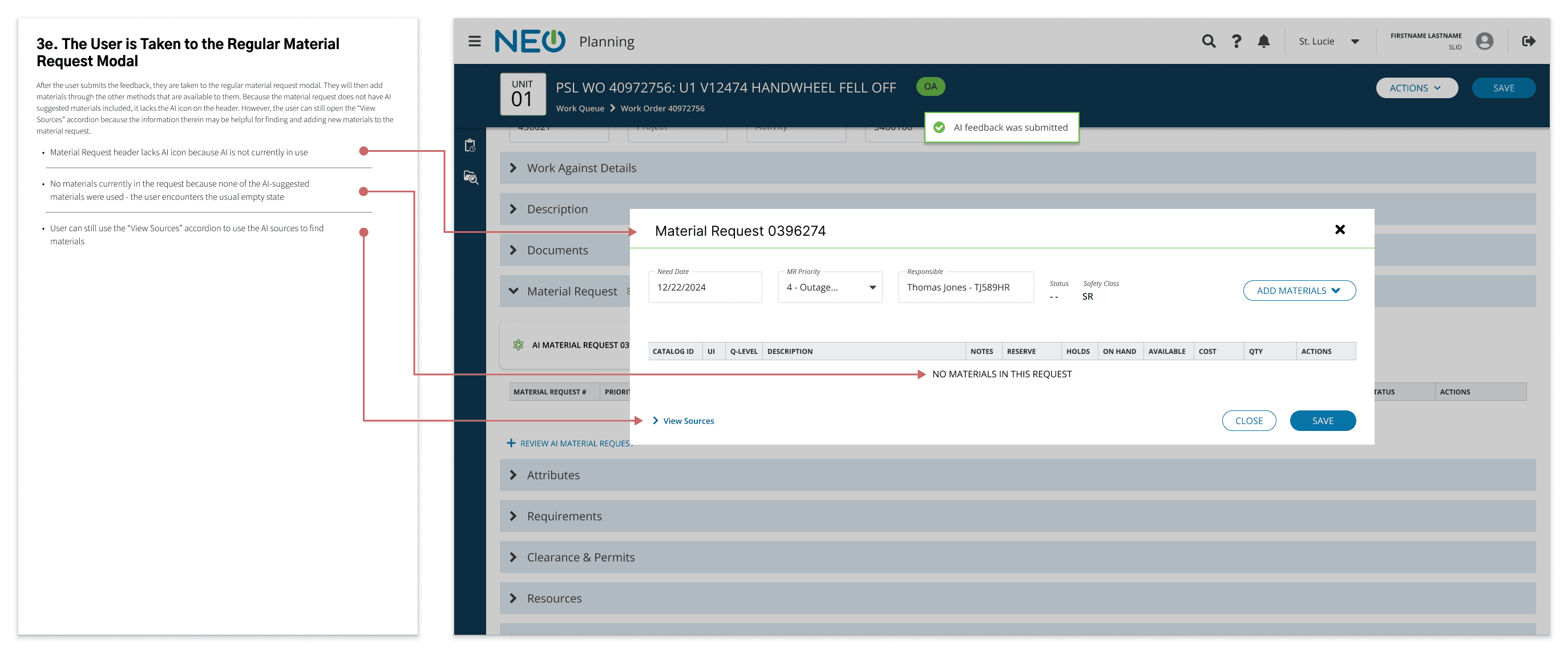
We removed the global "Off" switch. While users can cancel the modal to perform other tasks, creating a Material Request now requires passing through the AI suggestion phase.

  • Forced Feedback:

If a user deselects every item (indicating a total hallucination), a feedback modal is triggered. This replaces the old "Manual Override" feedback loop with a more integrated data collection point.
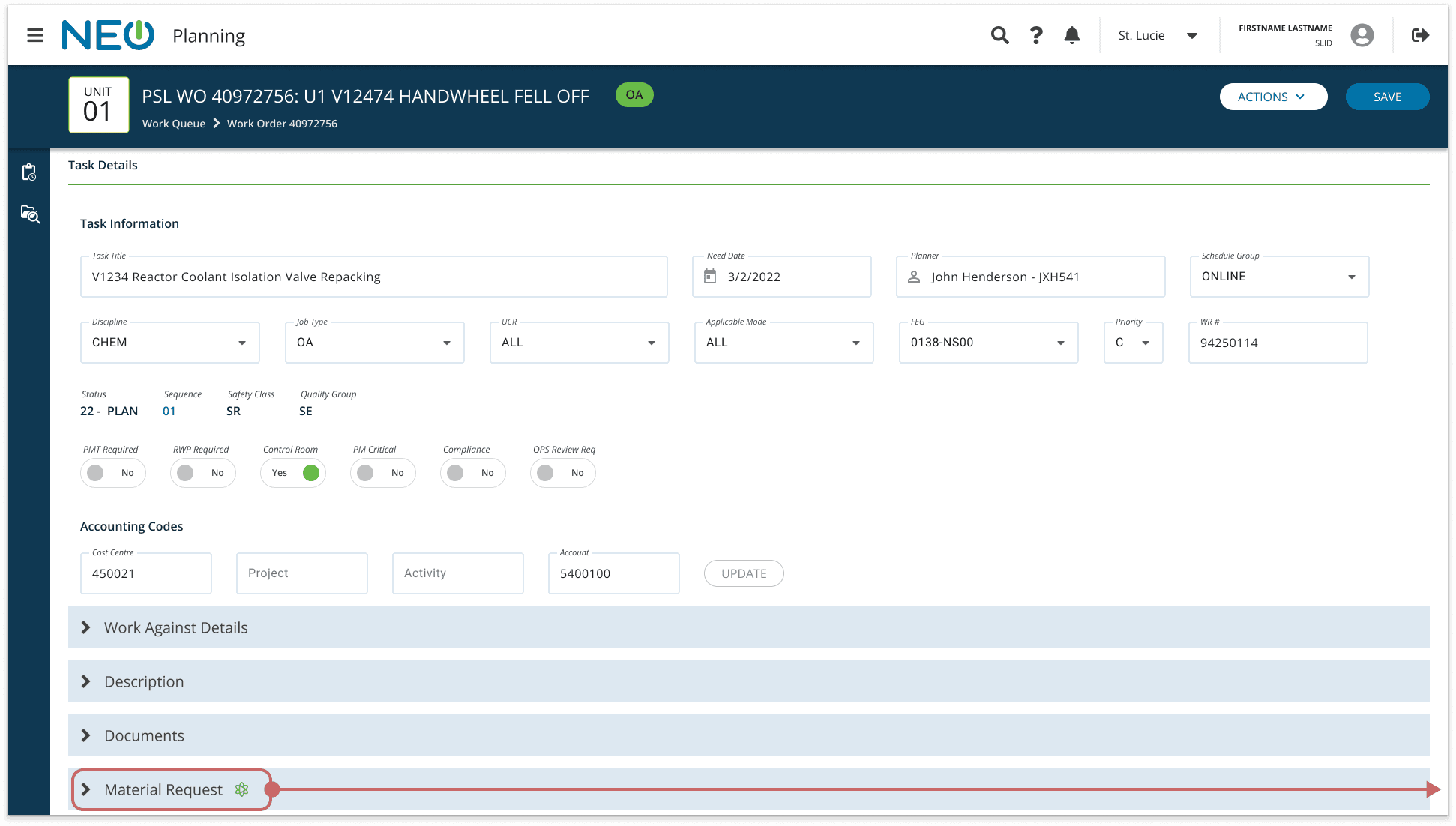
Managing the User and Stakeholder Transition

Users had heavily supported the Manual Override for the initial launch, so I didn’t want to remove the feature and break their trust without reviewing with them first. In order to ensure a smooth transition to the new feature, I followed a strict re-alignment process:

  1. Product Alignment:

Validated with the Product Owner that the long-term model health outweighed the short-term convenience of the Manual Override.

  1. User Transparency:

I reviewed the new flow with the Planners, explaining why we were making the change. Because they were already seeing the benefits of the AI, they agreed to trade the "Manual Override" for the promise of even better accuracy.

  1. Prototype Validation:

We updated the High-Fidelity prototype and validated that the "Check/Uncheck" interaction was just as fast as the old "Review/Kill" workflow.

The Result

The new workflow successfully closed the data loop. By capturing granular rejections, the engineering team broke through the plateau, leading to a second wave of accuracy improvements that further reduced the need for user intervention.

Results & Lessons Learned

Final Results

By moving from a "Manual Creator" model to an "AI-Augmented Editor" model, we achieved significant operational gains. The project not only delivered immediate ROI but also acted as a catalyst for a broader organizational shift toward automation.

  1. Immediate ROI: The 50% Efficiency Jump

Our research initially identified that planners spent 70% of their total time within the specific sections we targeted (Documents Review & Material Request). By automating the heavy lifting in these bottlenecks, we achieved a massive aggregate impact:

  • 50% Reduction in Planning Time:

Total planning time for AI-assisted tasks was cut in half.

  • The 3+ FTE Gain:

This efficiency gain was equivalent to adding more than 3 Full-Time Employees (FTEs) to the planning staff without increasing headcount.

  • Financial Impact:

At the salary level of expert planners, this efficiency translates to hundreds of thousands of dollars in annual value returned to the business.

  1. Workforce Agility through Standardization

While the AI provided speed, the standardization initiative (discussed in the "Consensus" section) provided resilience. By unifying the data structures across the continental U.S.:

  • Workforce Mobility:

The organization can now operate as a cohesive unit. During emergency outages or work surges, planners from one site can now assist other sites seamlessly, as the underlying work plan formats are no longer fragmented.

  1. Role Evolution: From Writer to Reviewer

This project initiated a fundamental transition for the workforce. We successfully shifted expert workers away from low-value manual tasks (typing work plans) and toward high-value cognitive tasks (reviewing and approving engineering logic). This "Reviewer Role" maximizes the impact of their expertise.

  1. The AI Catalyst

Beyond the immediate metrics, this project served as the "Proof of Concept" that unlocked the enterprise's AI roadmap.

  • Confidence to Scale:

The success of this launch proved that AI could be safely implemented in a nuclear environment, securing investment for AI initiatives in previously hesitant departments.

  • The Path to Complexity:

While this MVP focused on "Simple" work orders, the data loop we established is currently fine-tuning the models to handle "Complex" work order types, promising exponentially greater value in future releases.

Lessons Learned

Unlike projects where the “lessons learned” are defined by pivoting away from failure, this initiative was largely a story of trusting our instincts and validating them through rigorous execution. We didn't face catastrophic errors, and the successes we achieved offered profound lessons on how to implement disruptive technology in conservative environments.

1. Validate Assumptions Early

We conducted abbreviated testing on grayscale low-fidelity wireframes due to tight deadlines, but this constraint turned into a superpower. It forced us to validate our base-level assumptions (e.g., "Will they trust AI?") rather than getting bogged down in UI details. Testing early prevented costly rework and proved that low-fidelity validation is not a luxury, but a necessity for velocity.

2. Leverage Organizational Momentum

Standardizing the Work Plan template had been a "third rail" issue for years—too much friction, too little immediate payoff. However, by attaching this "side quest" to the high-priority AI initiative, I utilized the organizational pressure behind AI to bulldoze through the resistance. When you have a massive strategic mandate behind you, use that momentum to solve long-standing debt that the organization usually ignores.

3. Problem Definition > Tech Trends

In the age of AI, it is easy to fall into the trap of "A Solution Looking for a Problem." Because we spent time in the discovery phase analyzing past feature development, KPIs, historical user research, and user pain points, we didn't just "add AI." We defined the problem as Manual Synthesis, ensuring the AI was a targeted tool rather than a generic tech upgrade.

4. Plan for "Bridge Features"

The "Manual Override Toggle" was effectively a disposable feature - something we knew we might eventually phase out. However, designing it was critical for Day 1 success. Don't be afraid to build features that don't scale forever if they are required to get you off the ground today. Optimizing for long-term code purity is useless if you fail to secure initial adoption.

5. Trust is a Long-Term Asset

Implementing AI in a safety-critical environment requires a massive leap of faith from the users. We secured this buy-in not because the UI was pretty, but because I had spent years building "Trust Capital" with these users on previous projects. Digital transformation is 10% code and 90% relationship management.

6. Radical Simplicity (Do More with Less)

We deliberately avoided making the interface look "futuristic" or "flashy." By injecting the AI results directly into the existing views (Seamless Integration), we minimized the cognitive load of the transition. The most effective UI changes are often the ones users barely notice. Reducing the "fear factor" of a new tool is often more valuable than highlighting its novelty.

Social

LinkedIn

Contact

Get in touch


Portfolio

Featured Work

Process

About